IPAD APP
BEATSURFING2.
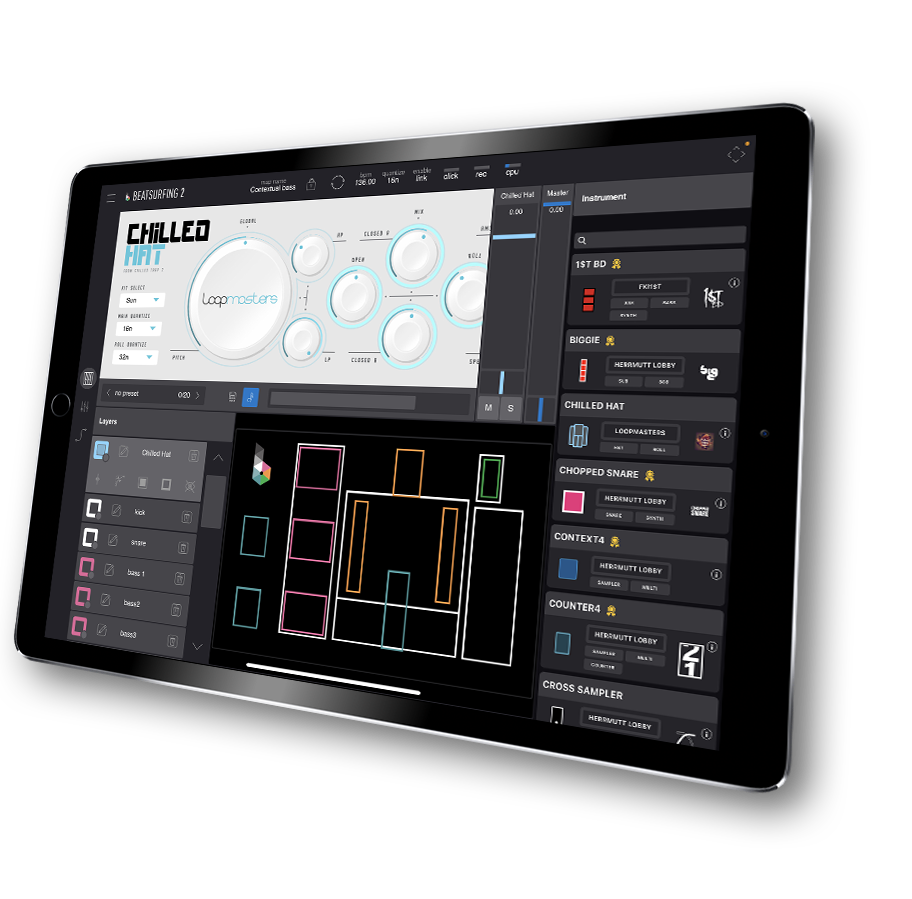
Immediate expression during the music production process. Turn your iPad into a playable instrument: build your layout, layer instruments, then play and record.
Create your layout · Layer instruments · Play & Record
THE APP
YOUR IPAD BECOMES AN INSTRUMENT.
What is BEATSURFING2?
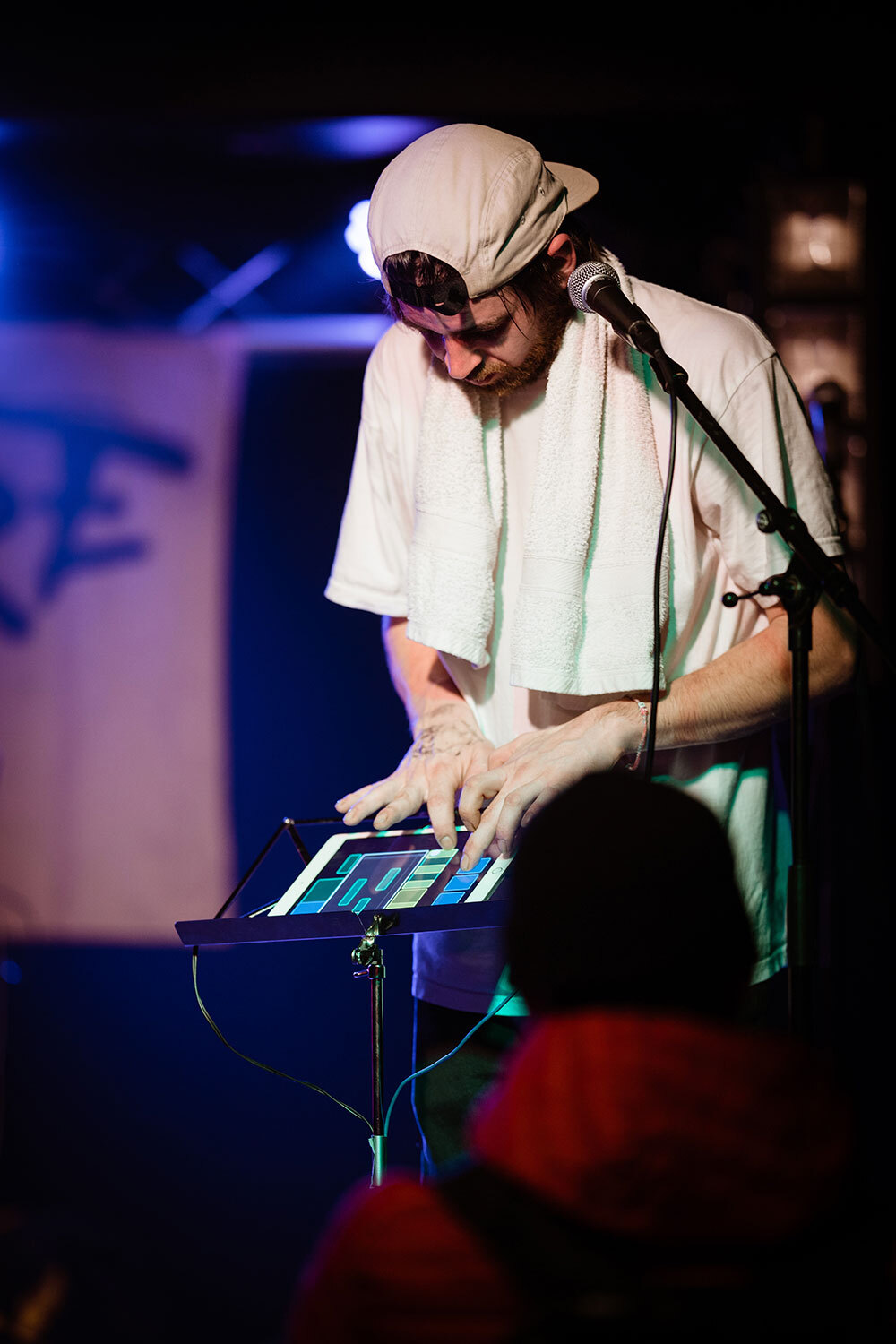
Our app transforms your iPad into a dynamic instrument, helping you reconnect with the pure joy of creation. The intuitive, playful experience sparks creativity, making it easy to explore new ideas that can seamlessly translate into live performances. Let your imagination lead the way to new musical horizons.
Get inspired and make it yours.
Assemble curated drum instruments and perform, tweak effects, swap samples from our library or add your own to breathe life into your music production and live stream. With its movement-based approach, Quickly sketch out ideas, integrate them into your music and use your creations for a compelling live performance.
Looking for that perfect snare, or have you sampled the perfect kick? Browse other producers’ instruments or layouts then tweak or replace samples with your own to get the sound you’re looking for.
INSIDE THE APP
HOW IT WORKS.
The Editor: Place, resize, and color instruments
The Browser: Drag & Drop instruments/samples and play them
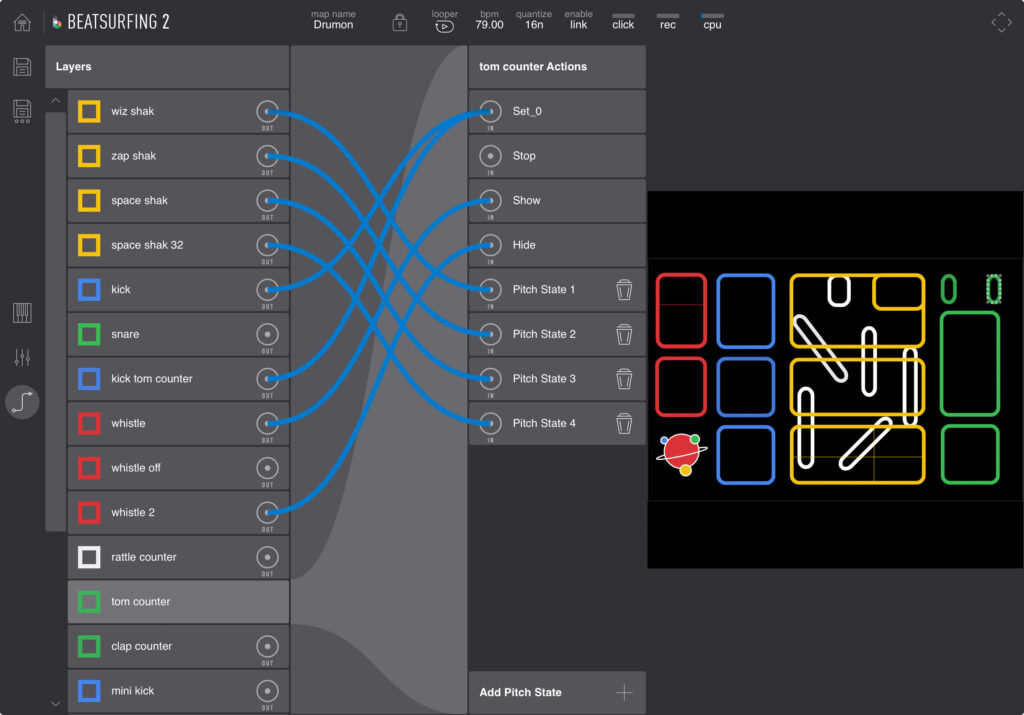
Connect: Create connections between instruments
The Mixer: Mix instruments together
The Instrument Catalog: Some instruments are free and can be tweaked. Paymium instruments can be used as-is and be played. Unlocked users have access to all instrument parameters.
FEATURES
EVERYTHING YOU NEED TO PERFORM.
ABLETON LINK
Link and sync with your DAW or favorite devices
MIDI OUT
Control your favorite synths and drum machines with midi instruments
SAMPLE IMPORT
Import your own samples
SAMPLE TRIM
Keep the part of the sample you want
INSTRUMENT PRESETS
Use the existing presets or create your own
PERFORMANCE LOOPER
Record loops on multiple layers while you play.
CUSTOM PAD IMAGES
Apply your own images to individual pads.
AUV3 AND MIDI
Jam with BEATSURFING in your AUv3 host and send MIDI to your favorite iOS apps.
DYNAMIC BACKGROUNDS
Change the background with actions from your instruments.
GET STARTED
LEARN IT IN 6 MINUTES.
Learn Beatsurfing fast! This 6-minute video tutorial covers all the essentials to get started. From importing or trimming samples, to using the counter instrument and customizing your layouts, it’s all covered.
VIDEOS
SEE IT IN ACTION.
BEATSURFING2 IS LIVE
THE IN-APP LOOPER
JUMPSTART YOUR TRACK
INSTALLATION AND FAQ
QUESTIONS AND ANSWERS.
INSTALLATION REQUIREMENTS
Only available for iPads
Requires iPadOS 12.0 or later
At the moment, BEATSURFING only runs on iPad. But it’s meant to be cross plateforme. The other device releases will come along the way.The iPad needs to run on iOS 12 or above.
BEATSURFING supports:
- aiff
- aif
- bwf
- flac
- ogg
- mp3
- wav
YES
- Just tap the round button in the top right of your screen.
- Choose between stereo or multi-track recording.
- To stop the recording, hit the button one more time. The button will change from a stop button back to a record button.
All recorded performances are saved on your iPad.
To access them, follow this path: Using the file browser, navigate to
“Files” > “Beatsurfing2” > “Performance” > “Name of your map”
To export BEATSURFING Maps on your iPad device :
- Go to the main screen
- Hit the button “export” exposed on the right side of the map
To find your exported maps on your iPad, go to:
> Files
> On my iPad
> Beatsurfing 2
> BeatSurfing2
> Maps
To import your own background in the BEATSURFING Playzone, you can import those different images format : .png, .jpeg, .svg.
The image imported should be square taking the width of your screen as a reference.
Note that about ¼ of the space above and under won’t be seen.
1. Connect your computers/devices to the same network. If there is no internet connection available you can use one of these offline methods.
Note: In case you are using a Lightning cable connection as an offline method, activating iOS in ‘Audio MIDI setup’ switches the connection mode of the iOS and deactivates Link. We recommend using a network-based connection in case you need to send or receive audio via iOS.
2. In Live, open Preferences -> Link MIDI and ensure that “Show Link Toggle” is selected.
3. Then enable Link by clicking its button on the far left of Live’s control Bar. If there are any other Link-enabled devices on the same network their count will be displayed here.
Link IndicatorIf at least one other Link-enabled app or instance of Live is connected, the Arrangement Position display will show a moving “progress bar” whenever Live’s transport is not running. This bar is a representation of the Live Set’s global launch quantization in relation to that of the other participants in the Link session. After you trigger playback, Live will wait until this bar is filled before starting.
YES
- Go to Audio MIDI Setup > Enable your iPad.
- Then go to your DAW preferences and select your iPad as the Audio Input Device.
You should be all set.
You can create a screen recording and capture sound on your iPad.
- Go to Audio MIDI Setup > Enable your iPad.
- Then go to your DAW preferences and select your iPad as the Audio Input Device.
To import your saved BEATSURFING Maps from your iPad :
- Go to the main screen
- Hit “Import map” exposed on the left side of the screen
- Go to the folder where the maps are saved
- Hit the map file you want to import
Note that to do so, you will have to have exported previous maps (see : How can I export my Maps?)
If you subscribed before we changed the pricing plan from subscription to unlocking, you probably have noticed that you only have access to the free usage of it and we apologize about the situation.
There is only one way to get back on track. YOU MUST CLAIM A REFUND to the Appstore, download the last App on the store and go through the buying process again.
Here is the Apple procedure to claim a refund : https://support.apple.com/en-gb/HT204084
COMMUNITY
SHARE YOUR MAPS.
Browse layouts made by other BEATSURFING2 players, download them and share your own in the MAP Sharing Center.
KEEP EXPLORING
MORE FROM BEATSURFING.
SAMPLE PACKS
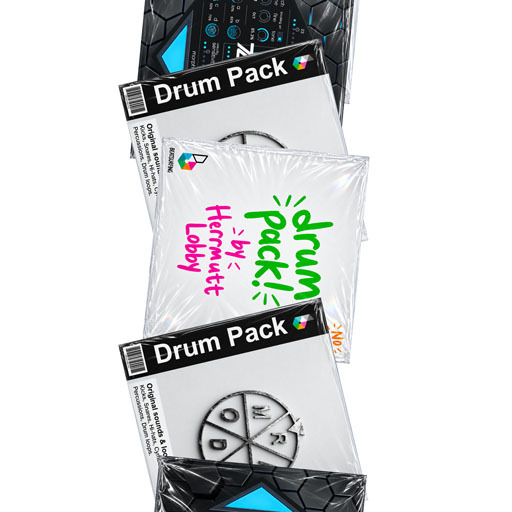
Drum kits and one-shots made with our plugins.
DAW FILES
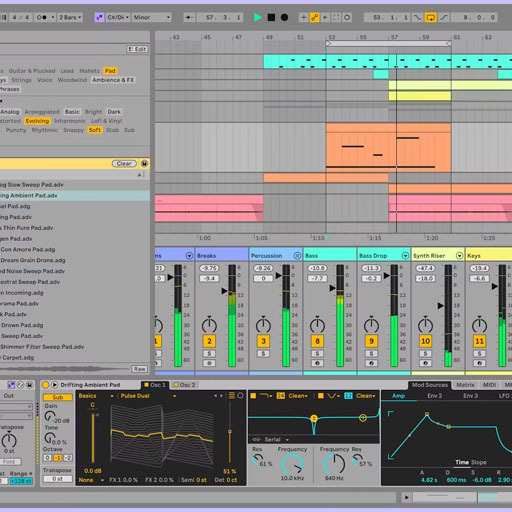
Free Ableton Live projects to take apart.
L.A. SESSIONS
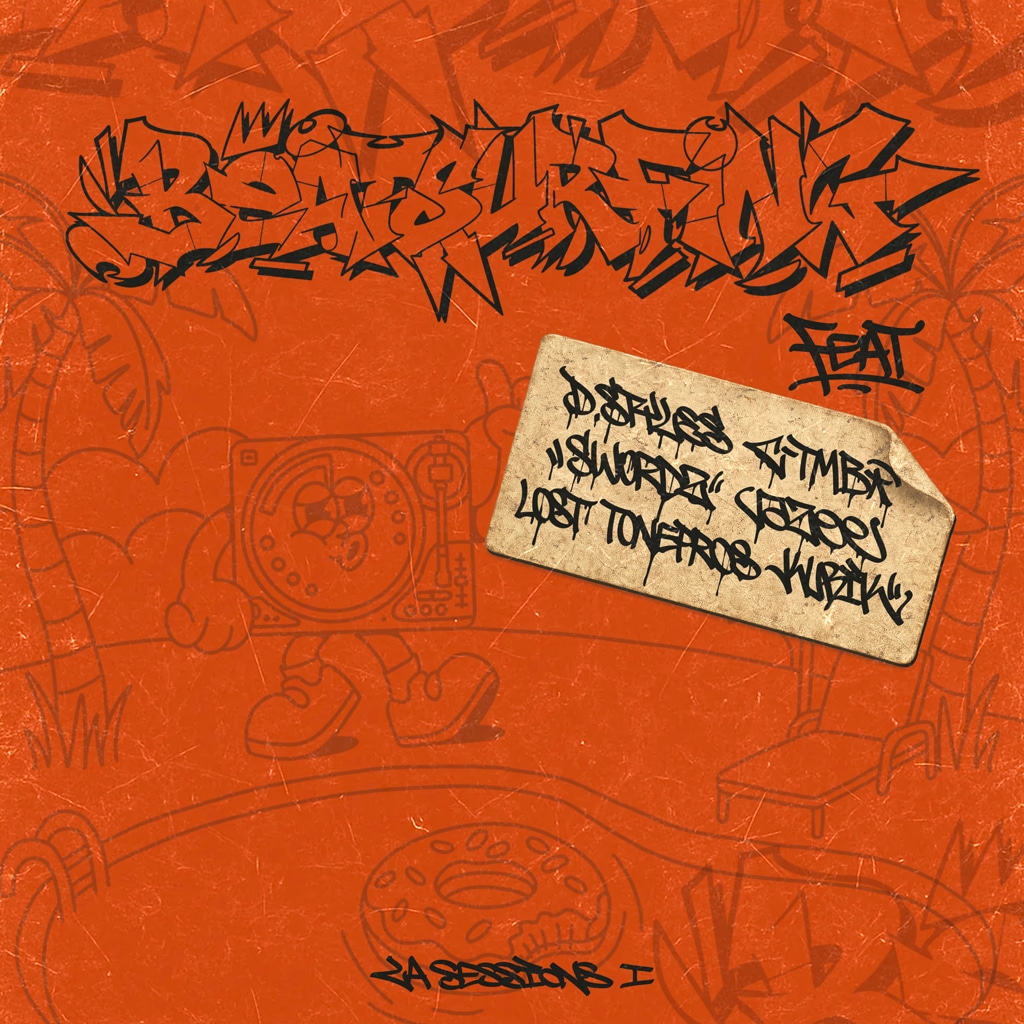
A free scratch EP recorded live in Los Angeles.
VRAC
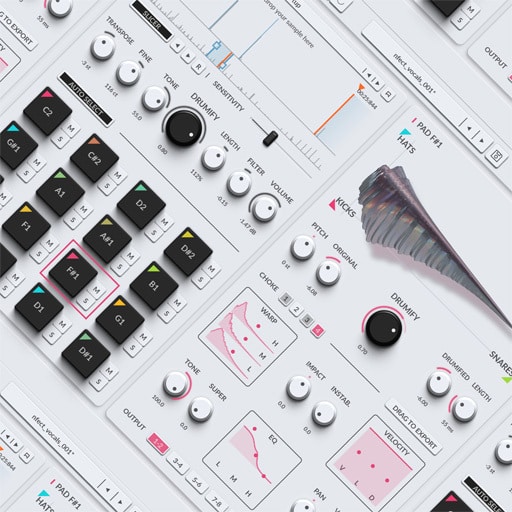
Our free plugin. Drumify any sound.
 Login with Google