Help center/RANDOM Metal
User guide
RANDOM Metal
Everything you need to install RANDOM Metal and shape infinite percussive sounds.
Welcome
Meet RANDOM Metal
Infinite percussive sounds: RANDOM Metal is a percussive monophonic synthesizer by PHAZZ & BEATSURFING, built to inspire creativity and exploration with percussive chaos.
It offers a rich palette of sound engines and controls for creating unique percussive sounds and textures.
Key features
- 40+ percussive matter types
- A wide range of sonic textures, from aggressive metallic cymbals to shakers, hi-hats or odd percussive sounds.
- Randomization
- Instantly transform your sounds with the RANDOM button, with adjustable deviance for subtle or dramatic changes.
- Expressive XY pad
- Experiment with hundreds of dynamic parameters, unique to each engine.
- Dual modes
- Trigger 12 unique pads or play notes chromatically.
Where to start
Quick start
System requirements
RANDOM Metal runs as a plugin in your DAW on Windows and macOS.
Windows
- Windows 10
- 2 GHz Pentium IV processor or equivalent
- A host that supports 32-bit or 64-bit VST
- At least 246 MB free disk space
- Formats: VST, VST3, AAX
macOS
- macOS 10.13 High Sierra or later
- Intel or Apple Silicon processor
- A host application that supports 64-bit VST or AudioUnit
- At least 330 MB free disk space
- Formats: AU, VST, VST3, AAX
Quick start
Installation
Download the installer for your system, run it, then enter your license code the first time you open RANDOM Metal.
Windows
- Download the RANDOM-Metal_vX.X.X.exe installer file.
- Install to your preferred plugin folder.
- On first launch, enter your license code.
macOS
- Download the RANDOM-Metal_vX.X.X.pkg installer file.
- Follow the steps to install. The plugins are installed to the default location: /Library/Audio/PlugIns.
- On first launch, enter your license code.
After purchasing RANDOM Metal, your license key appears on your Licenses page: beatsurfing.com/my-account/license-keys.
Quick start
Activating & deactivating the license
Each license you buy lets you activate the plugin on 3 computers at a time.
If you need to run it on another machine, first deactivate the plugin's license on one of your machines.
When a license is deactivated
Your plugin is still usable, but in a frozen state: your existing sessions will load the plugin and its parameters in their last saved state. However, you won't be able to access the user interface to tweak its parameters.
Using RANDOM Metal
Global settings
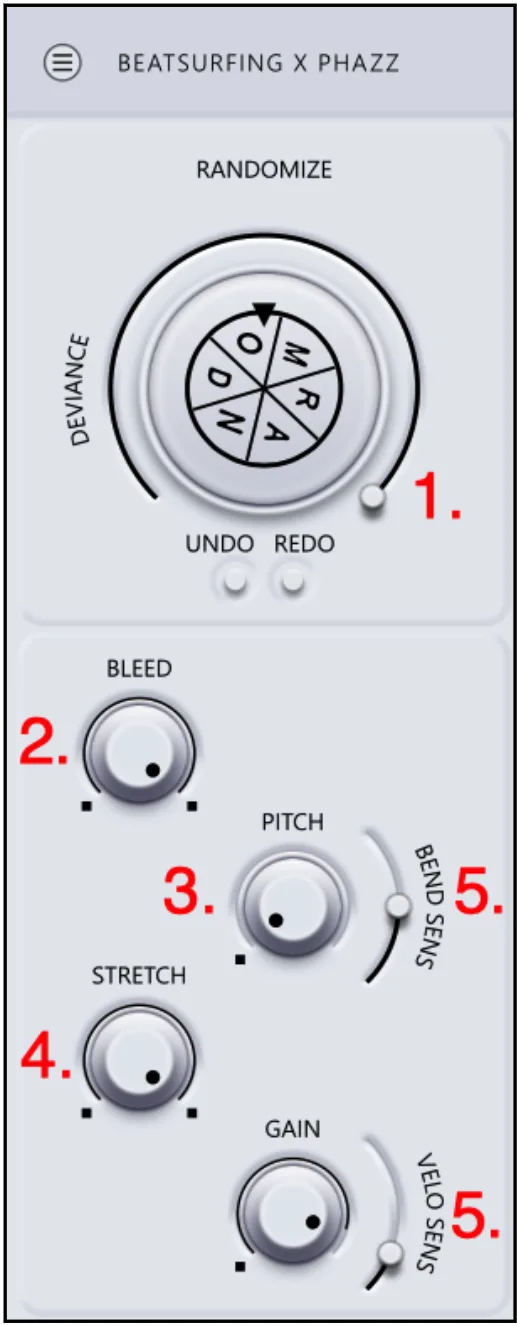
The global controls act on the whole instrument. The numbers match the screenshot.
- 1. Deviance
- Sets the intensity of the global randomization when you hit the RANDOM button. Low values give subtle tweaks; high values unleash large transformations.
- 2. Bleed
- A super macro that drastically alters several parameters, which vary between engines. It can radically change the character of your sound.
- 3. Global pitch
- Adjusts the overall pitch of the synthesizer.
- 4. Global stretch
- Changes the overall duration of your sounds without altering their pitch. Try it on shaker engines: you can really hear the spread of the individual shakes.
- 5. Pitch bend & velocity
- Globally adjust the response to pitch bend and velocity, which shapes how your MIDI controller reacts to your playing dynamics.
Using RANDOM Metal
X/Y pad
The expressive pad and shader control hundreds of parameters, for endless ways to shape your sounds.
As in the original RANDOM, the effect of the pad varies from one engine to another. Enjoy the journey.
X/Y Latch
The latch mode syncs the XY position with the note-on.
- Latch on: the XY values are updated only at note-on.
- Latch off: continuous expression while the note plays.
Using RANDOM Metal
Pads
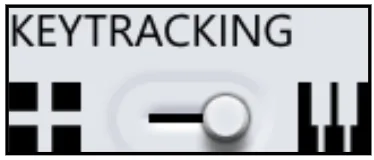
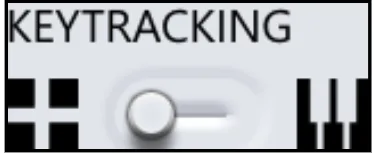
RANDOM Metal has 12 pads with two distinct modes, switched with the Keytracking toggle.
Two modes
Key tracking mode: play the selected pad chromatically across the keyboard.
Traditional mode: trigger a different sound with each of the 12 pads.
Individual pad parameters
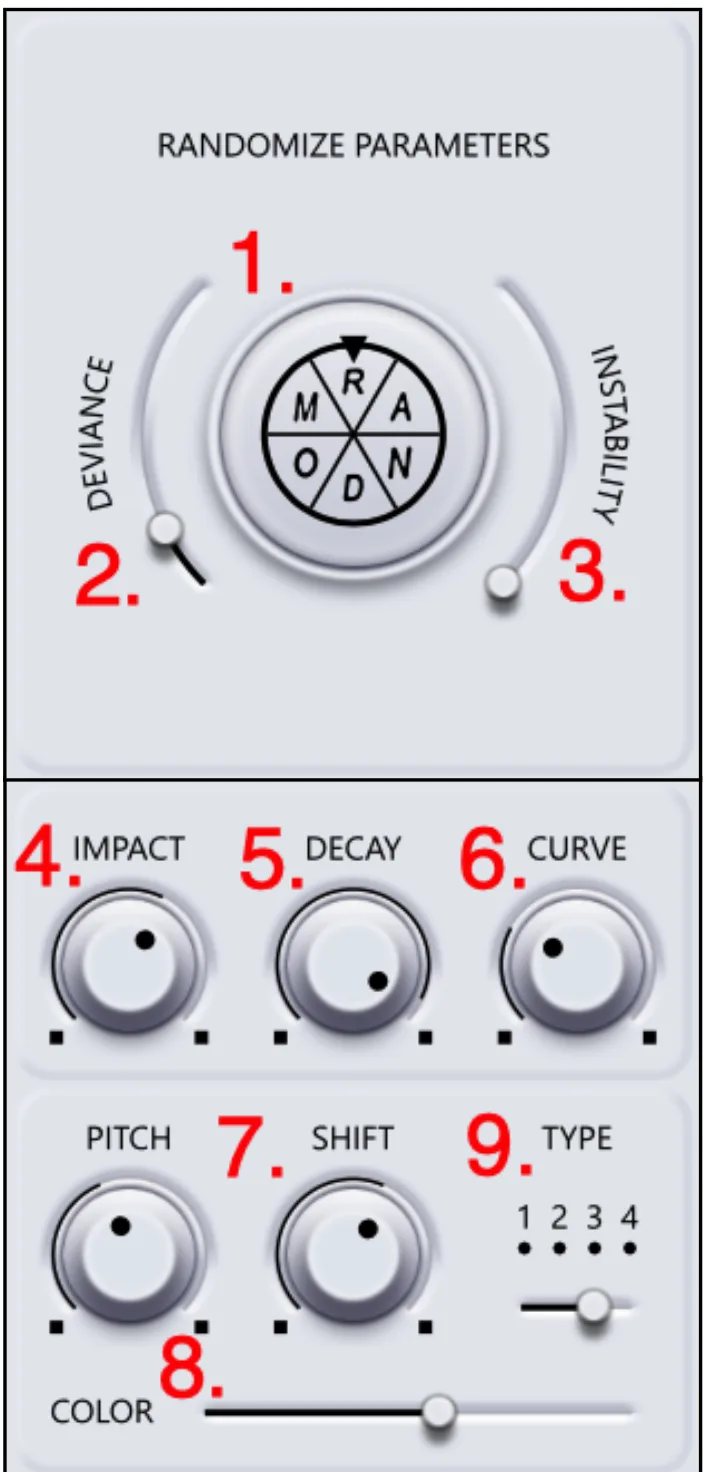
Take individual control over each pad:
- 1. RANDOM
- Randomizes the selected pad's parameters.
- 2. Deviance
- Like the global Deviance, sets how far the RANDOM button takes the selected pad.
- 3. Instability
- Adds unpredictability and movement to the sound on each pad press.
- 4. Impact
- Controls the initial impact and transient, shaping attack and punch.
- 5. Decay
- How long the sound decays after the initial impact.
- 6. Curve
- Shapes the envelope: left for a thinner sound, right for a fuller one.
- 7. Pitch shift
- Shifts the pitch up or down for harmonic variation.
- 8. Color
- Alters the harmonic content.
- 9. Type
- Chooses one of 4 variations of each engine, changing the overall timbre and resonance.
Auto set pads
In drum pad mode only, the last played pad is selected automatically, so you can see and adjust its parameters right away.
Using RANDOM Metal
Loud & quiet, mix & FX
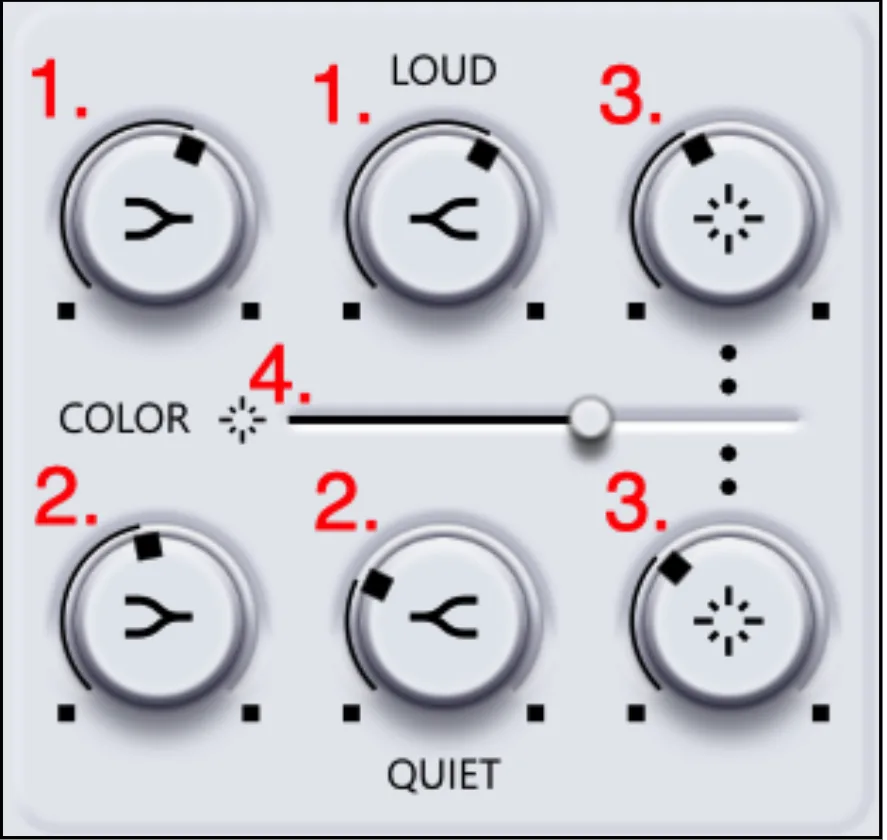
Think of these knobs as a musical EQ to reach for before any other equalizer: they fine-tune the dynamic range of both low and high frequencies.
- 1. Low quiet / loud
- Amplitude of the quieter or louder sounds in the low-frequency range.
- 2. Bright quiet / loud
- Amplitude of the quieter or louder sounds in the high-frequency range.
- 3. Mix (quiet / loud)
- A dynamic control that adjusts the mix between the quiet and loud parts of the sound.
- 4. FX color amount
- A macro that changes the behavior of the built-in FX.
Pan / stereo
Position your sounds in the stereo field and adjust their width and depth.
Using RANDOM Metal
Engines & presets
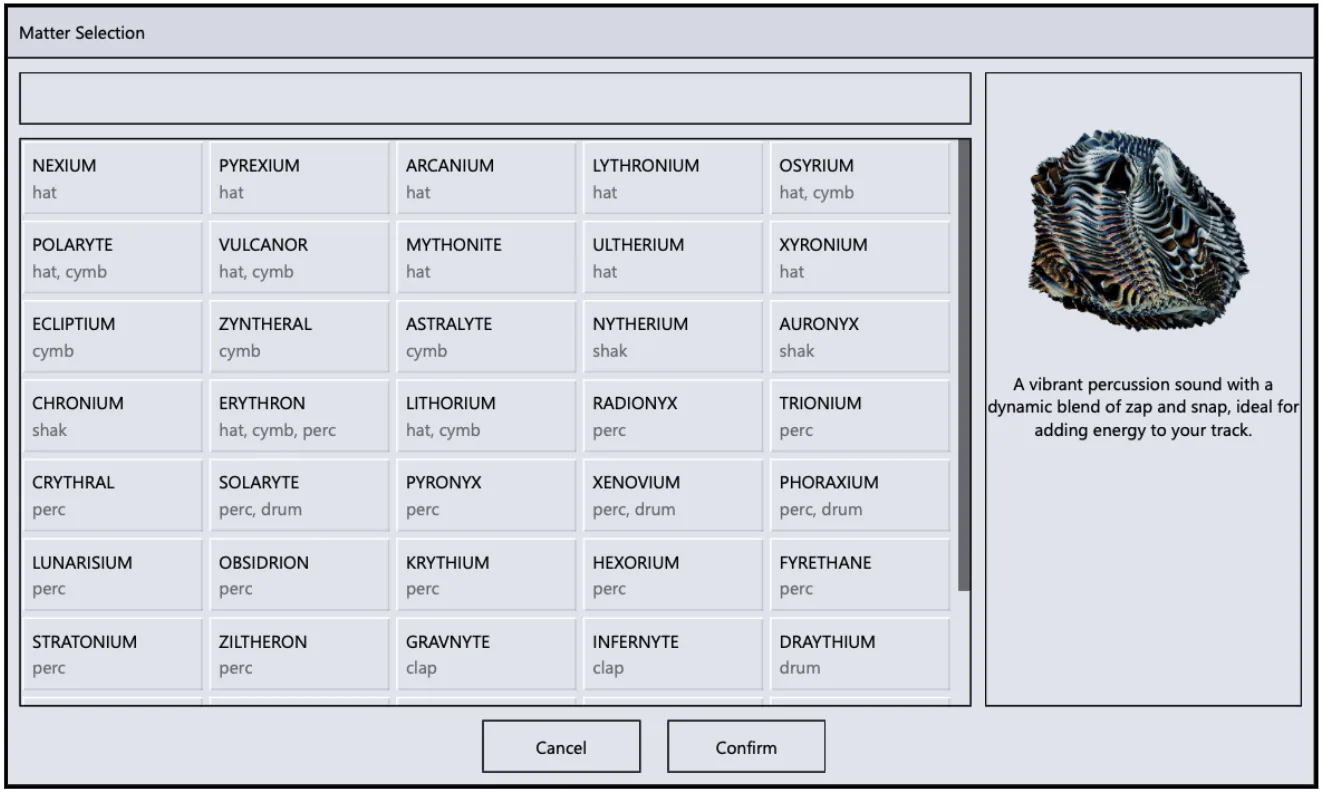
Choose from 25 percussive synth engines, each with its own personality and a selection of inspiring presets.
Don't be afraid to venture off the beaten path and explore what each engine offers.
Saving presets
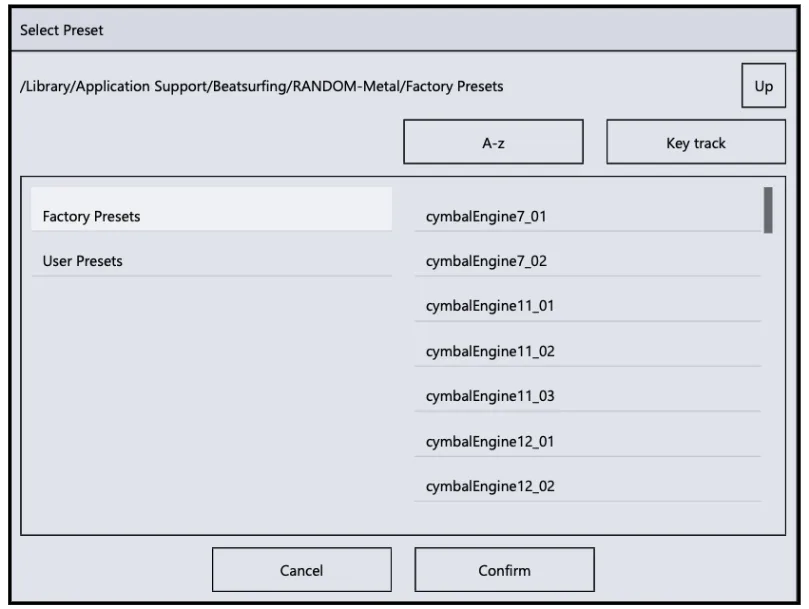
Save your own settings as presets for later use.
Using RANDOM Metal
System performance
RANDOM Metal is designed to be efficient and won't hog your system resources.
It offloads the heavy lifting of visual shaders and 3D rendering to your GPU, and keeps your CPU for the synth engines and other critical tasks. This keeps performance smooth even on systems with moderate CPUs. We have tested it on computers with integrated GPUs: it works fine with lower visual settings.
Lowering 3D quality
By default, the Automatic 3D Quality toggle is on: the plugin switches to another quality setting if it notices the frame rate dropping. To set it yourself, turn the toggle off and move the 3D Quality slider below it.
Let your imagination run wild with RANDOM Metal. Embrace the chaos, explore new sonic territories, and forge unique percussive sounds that set your music apart.
Help
Support
Can't find your answer in this guide? Everything else is in the BEATSURFING Help center.
Contact us
Thanks for supporting us. Don't hesitate to reach out with any questions or ideas: send us a message from the Help center.
The BEATSURFING team
 Login with Google