USER GUIDE
Ready to play.
DRUW is a drum instrument that you perform. It runs as an instrument plugin inside your DAW, and the phone or tablet you already own becomes its playing surface, through the free BEATSURFING Performer app. Tap, slide and shake expressive pads, then record your performance as MIDI, straight into your project.
DRUW does not write the beat for you. It creates playable possibilities that invite you to move, react and perform.
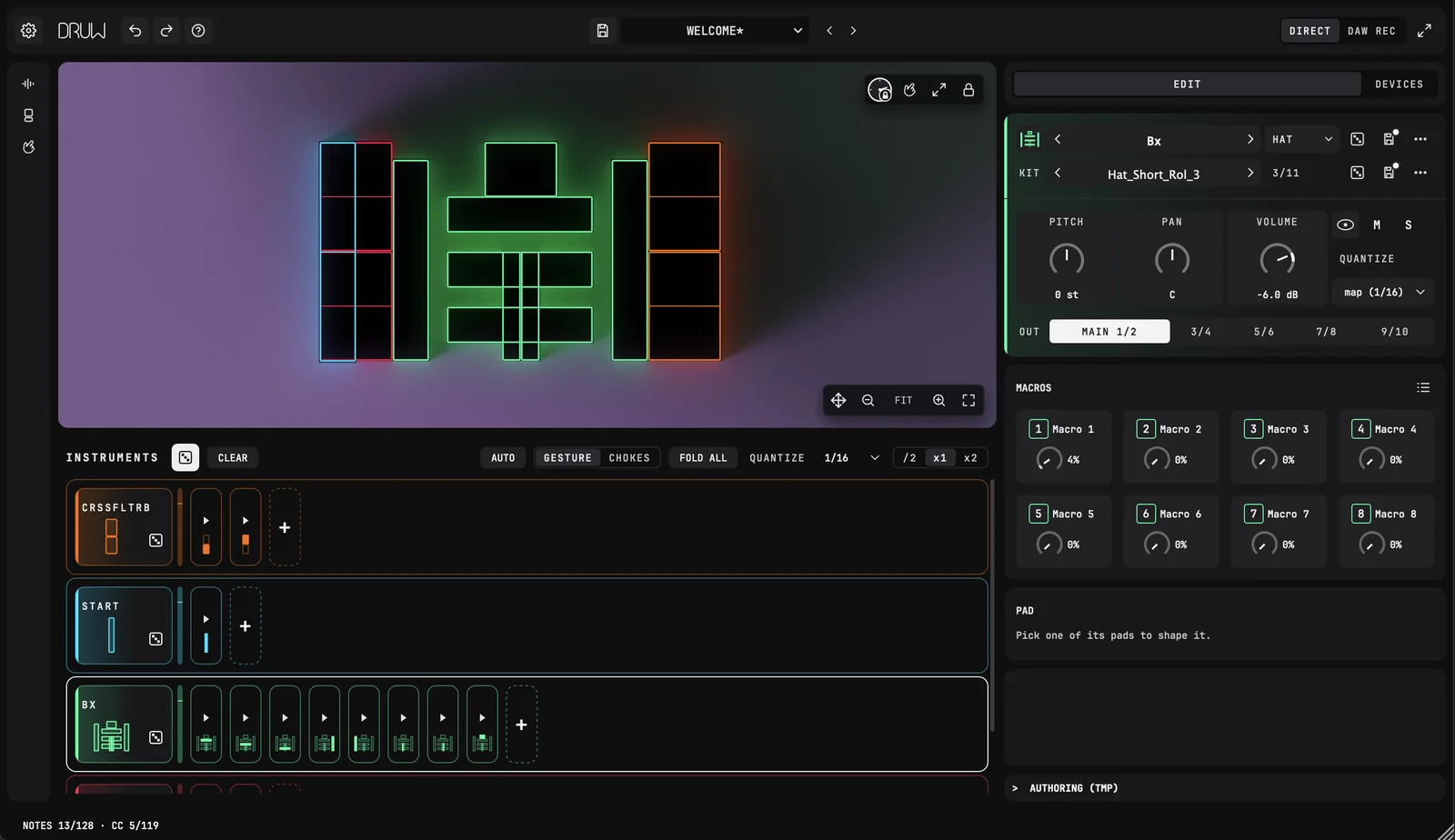
Global Key Features
- Roll
- roll a complete, playable playground in one click, then roll it again, or roll a single instrument, until it feels right.
- Customize
- rearrange the pads to fit your hands, pick from the included instruments and kits, or load your own samples.
- Play
- perform in real time from your phone or tablet, over Wi-Fi or with a USB cable.
- Expressive pads
- each pad responds to touch, to slides across its edges and to shakes, and the position of your finger can shape the sound while you play.
- Sound design
- shape every sample with its start and end, amp, pitch and filter envelopes, chokes, and 8 macros per instrument.
- Your timing, your choice
- quantize to your DAW's grid, with straight, triplet and quintuplet divisions, or turn it off for a loose, human feel.
- Record
- capture what you play as MIDI in your DAW.
Why DRUW?
- Playable instruments, not programmed ones
- every take is a performance, with the feel of a live take.
- Frictionless
- from installation to your first groove in a few minutes.
- Built for the studio and the stage
- write in your DAW, or play live.
Where to start
QUICK START
Five minutes from installation to your first groove.
- Install DRUW. Run the installer. It installs the DRUW plugin and the BEATSURFING bridge, which runs in the background to allow MIDI recording.
- Open DRUW in your DAW. Load it on an instrument (MIDI) track and open its window. The first time, enter your licence code.
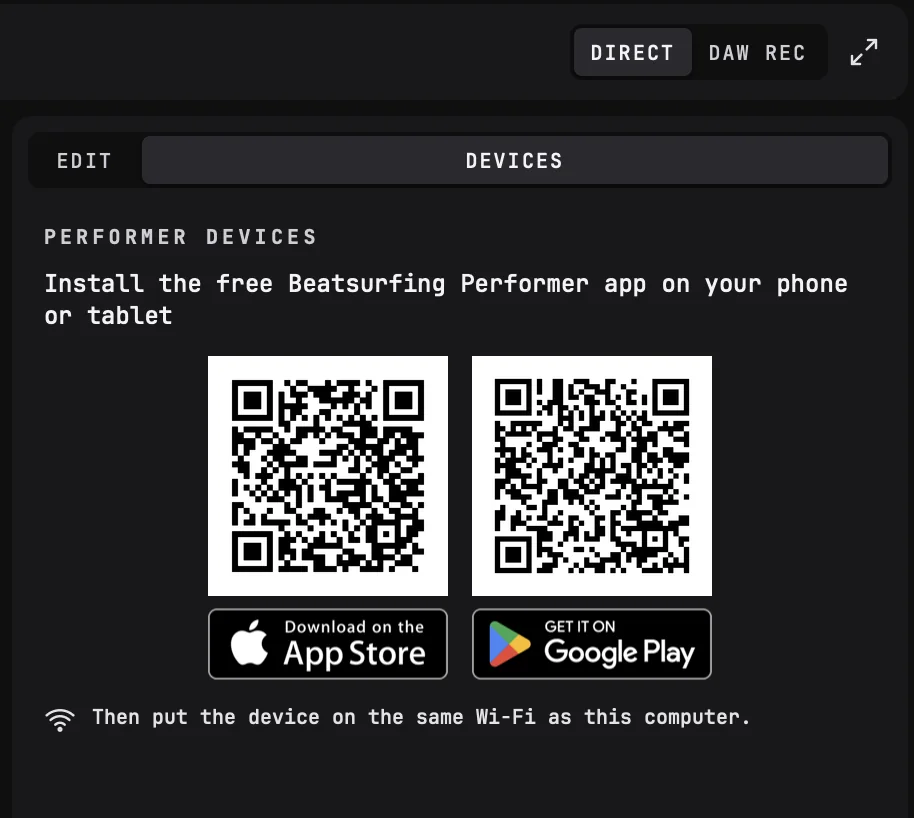
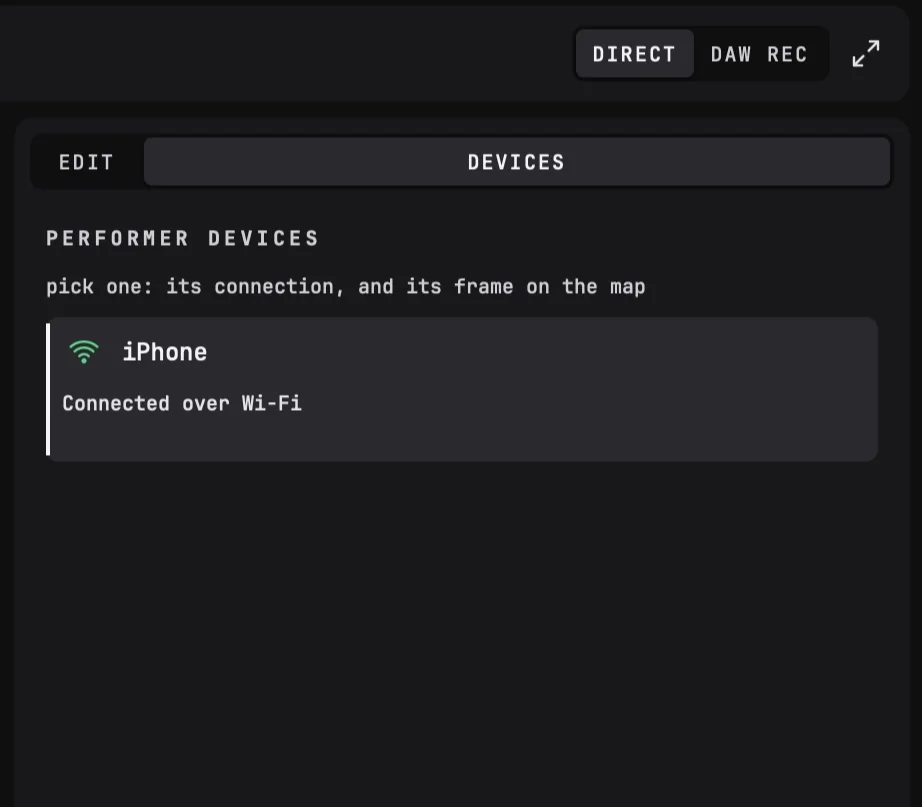
- Connect your phone or tablet. Click the DEVICES tab at the top of the right column and scan the QR code for your device to install the free BEATSURFING Performer app. Put the device on the same Wi-Fi network as your computer and open the app: it joins DRUW on its own and appears in the list.
4. Roll a playground. A new DRUW opens on the Welcome preset, ready to play. Click the dice next to INSTRUMENTS, below the playground: every instrument is replaced by another one of the same type, with new sounds. The dropdown beside the dice lets you re-roll only the sounds. The new sounds are drawn from the sample folders marked in the SAMPLES tab of the browser. Click the dice again for another playground.


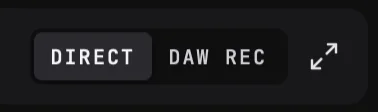
6. Record it in your DAW. The DIRECT | DAW REC switch in the header chooses where your pads go. DIRECT plays them straight in DRUW. DAW REC sends them through the BEATSURFING bridge to your DAW, as MIDI: set the track's MIDI input to BEATSURFING, arm it and play. Your DAW records the notes and sends them back to DRUW, which plays them.
5. Play. Slide your finger across the pads on your device. No device at hand? Make sure the padlock at the top right of the playground is closed, and click or drag on the pads with your mouse.
7. Keep it in time. Quantize, at the right of the INSTRUMENTS header, snaps your hits to the beat of your DAW. Pick a grid, from 1/4 to 1/32 (T for triplets, Q for quintuplets), or Off to play free. It sets the whole playground (1/16 by default): every instrument follows it unless you give it its own.

The first time you open DRUW, a Quick tour shows you around. For step-by-step help, click ? in the header: HELP walks you through each step on DRUW itself.
01MEET DRUW
Open DRUW in your DAW
DRUW is an instrument plugin. Load it on an instrument (MIDI) track in your DAW, like any virtual instrument, and open its window. The very first time, DRUW asks you to enter your licence.
HELP
The first time you open DRUW, a Quick tour shows you around. Replay it from HELP.
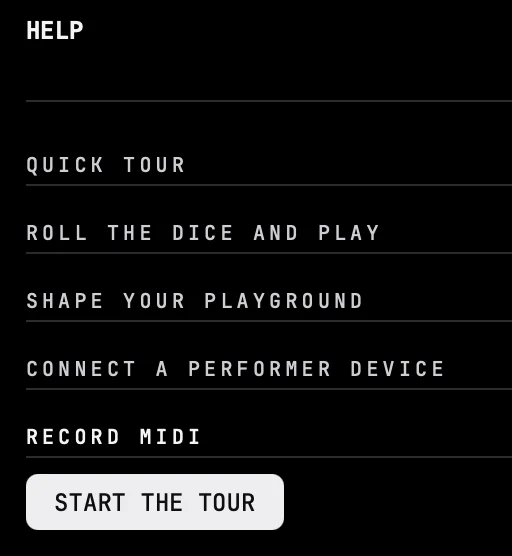
Click ? in the header to open HELP. It holds five short chapters:
- Quick tour
- a look around DRUW: the playground and its instruments, the browser, the panels, and where to find more help.
- Roll the dice and play
- roll the dice: DRUW hands you a new playground, ready to play.
- Shape your playground
- unlock the playground to make it yours: its pads, its instruments and their sounds.
- Connect a Performer device
- play DRUW with your fingers: the free BEATSURFING Performer app turns your phone or tablet into its playing surface.
- Record MIDI
- record what you play as MIDI in your DAW, to edit it and play it back.
The main window
The header, at the top:

- On the left: Settings, Undo and Redo, and ? (HELP).
- In the middle: the preset you're playing. Click its name to browse the presets, use < and > to load the previous or next one, and the save icon to save your own.

- In the middle: the preset you're playing. Click its name to browse the presets, use < and > to load the previous or next one, and the save icon to save your own.
- On the right:
- DIRECT | DAW REC
- play DRUW directly, or through your DAW to record MIDI.
- Fill screen
- make the window as big as your screen. RESTORE brings it back to a small size.
The browser, on the far left: the SAMPLES and INSTRUMENTS libraries. Click a tab icon to open it; click the chevron to fold it.
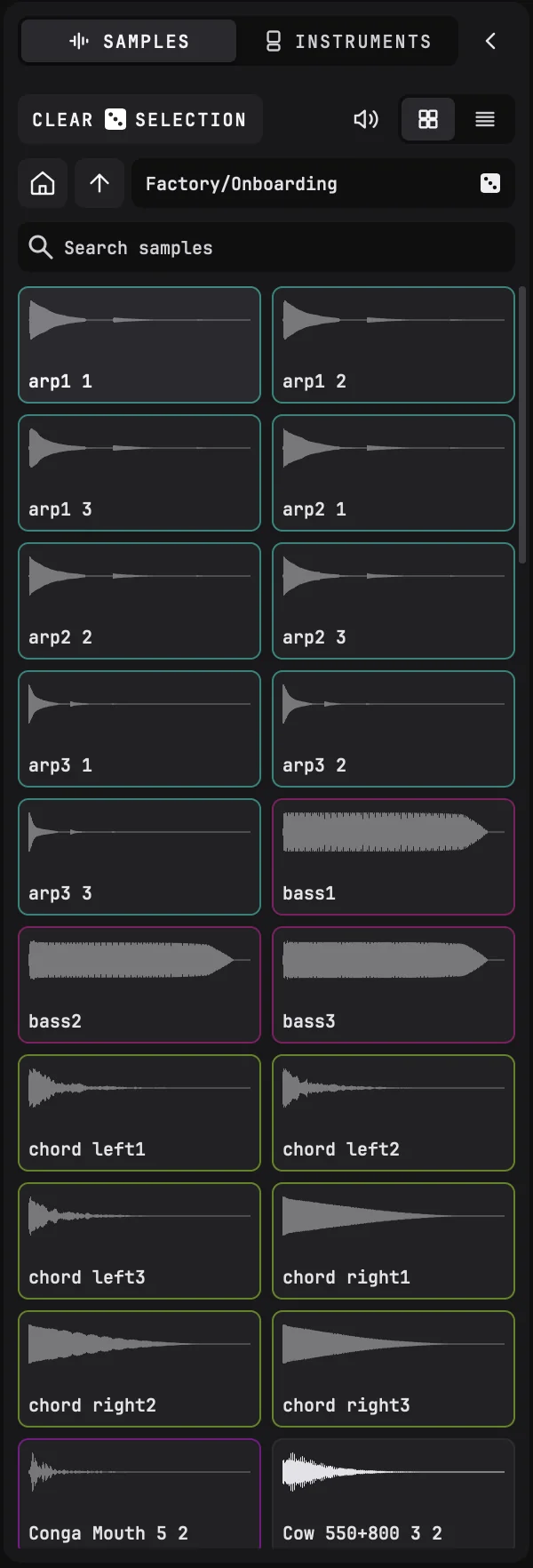
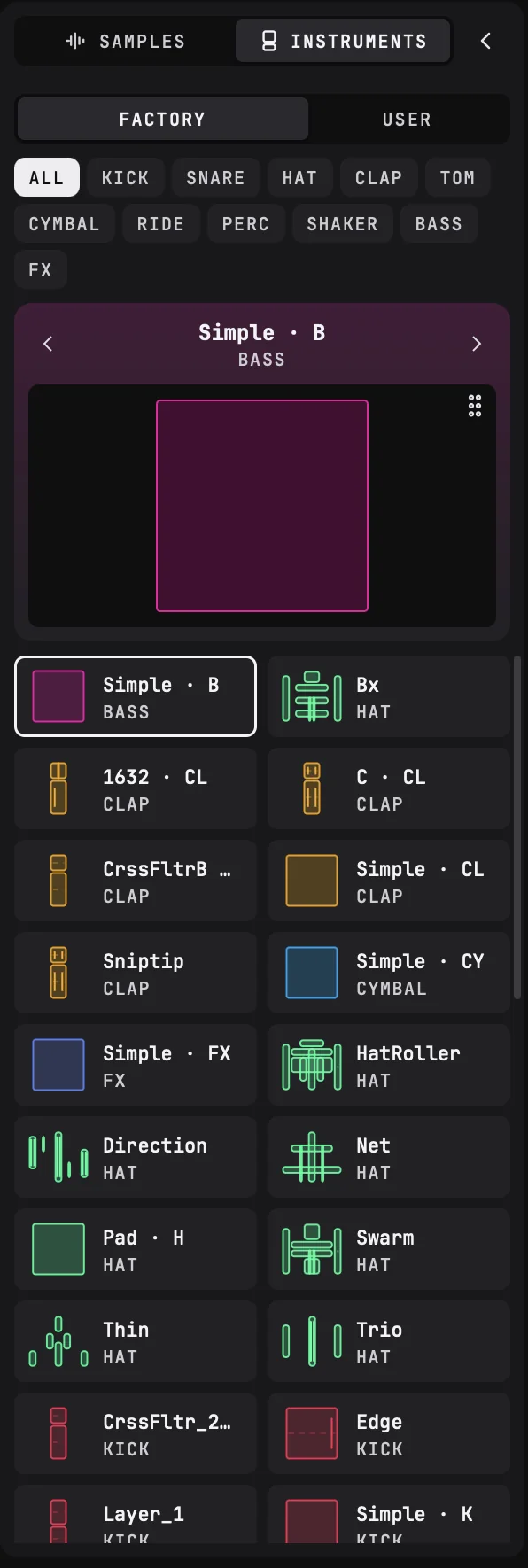
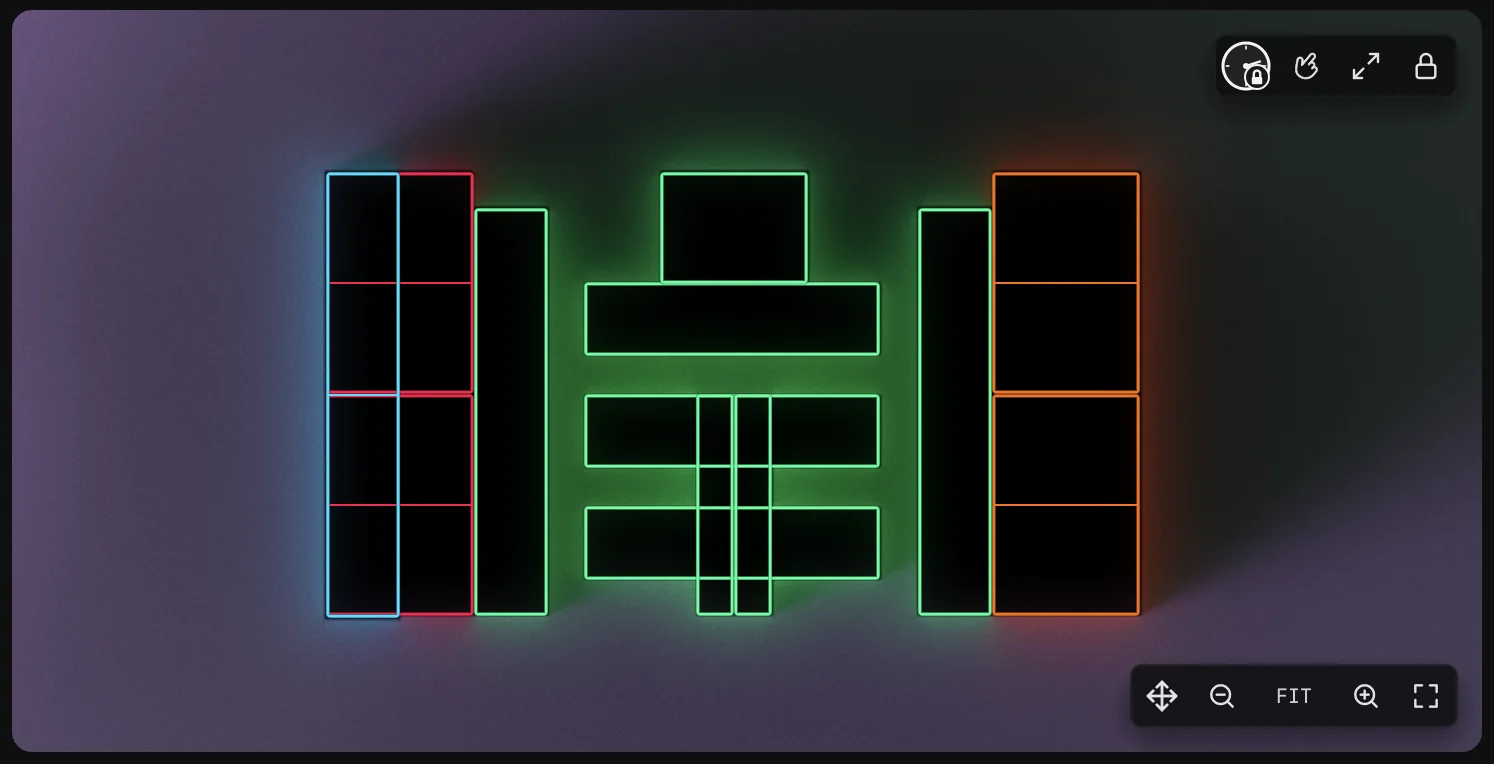
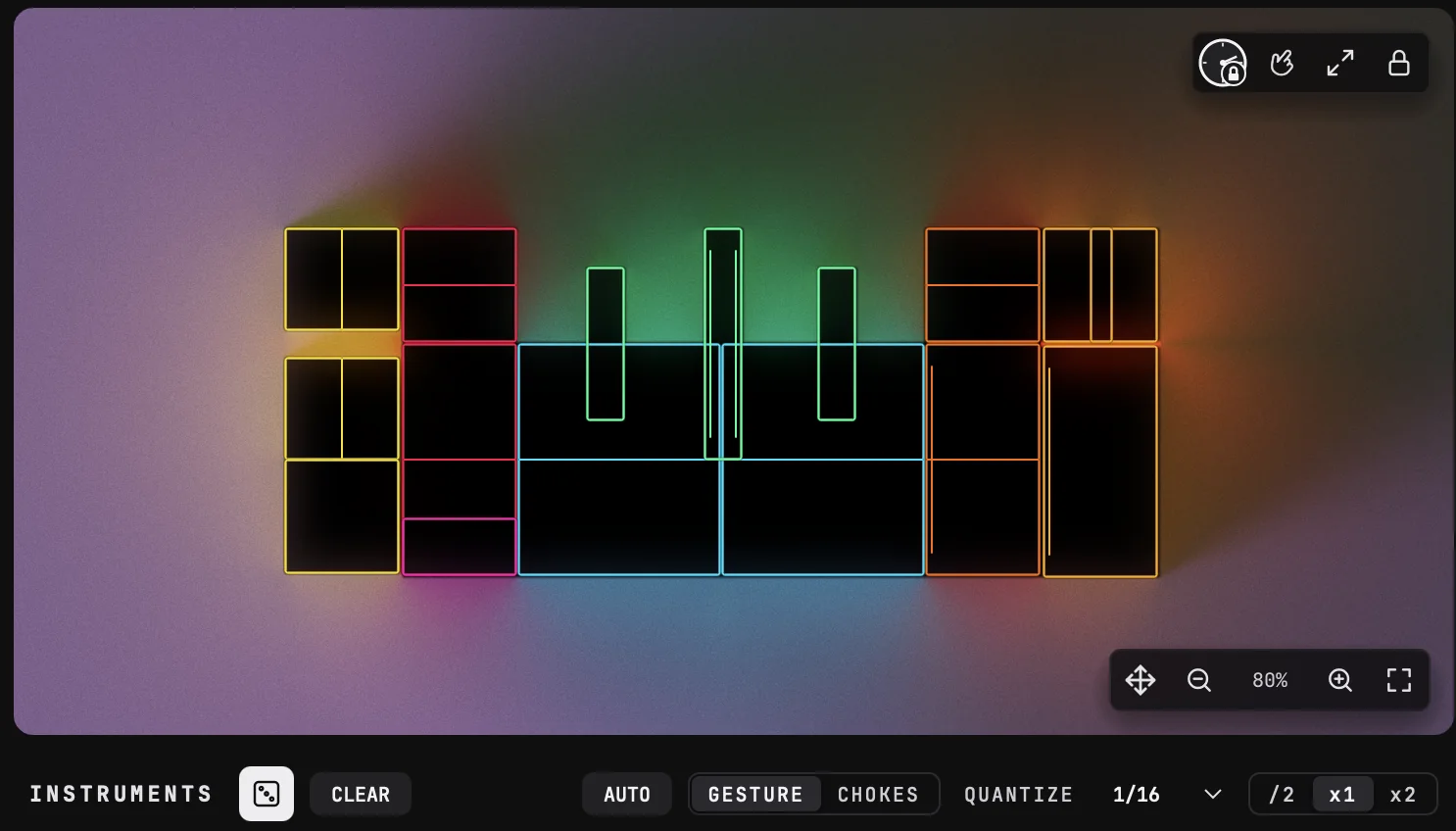
The playground, in the middle: every pad of your instruments, laid out as they appear on your device.
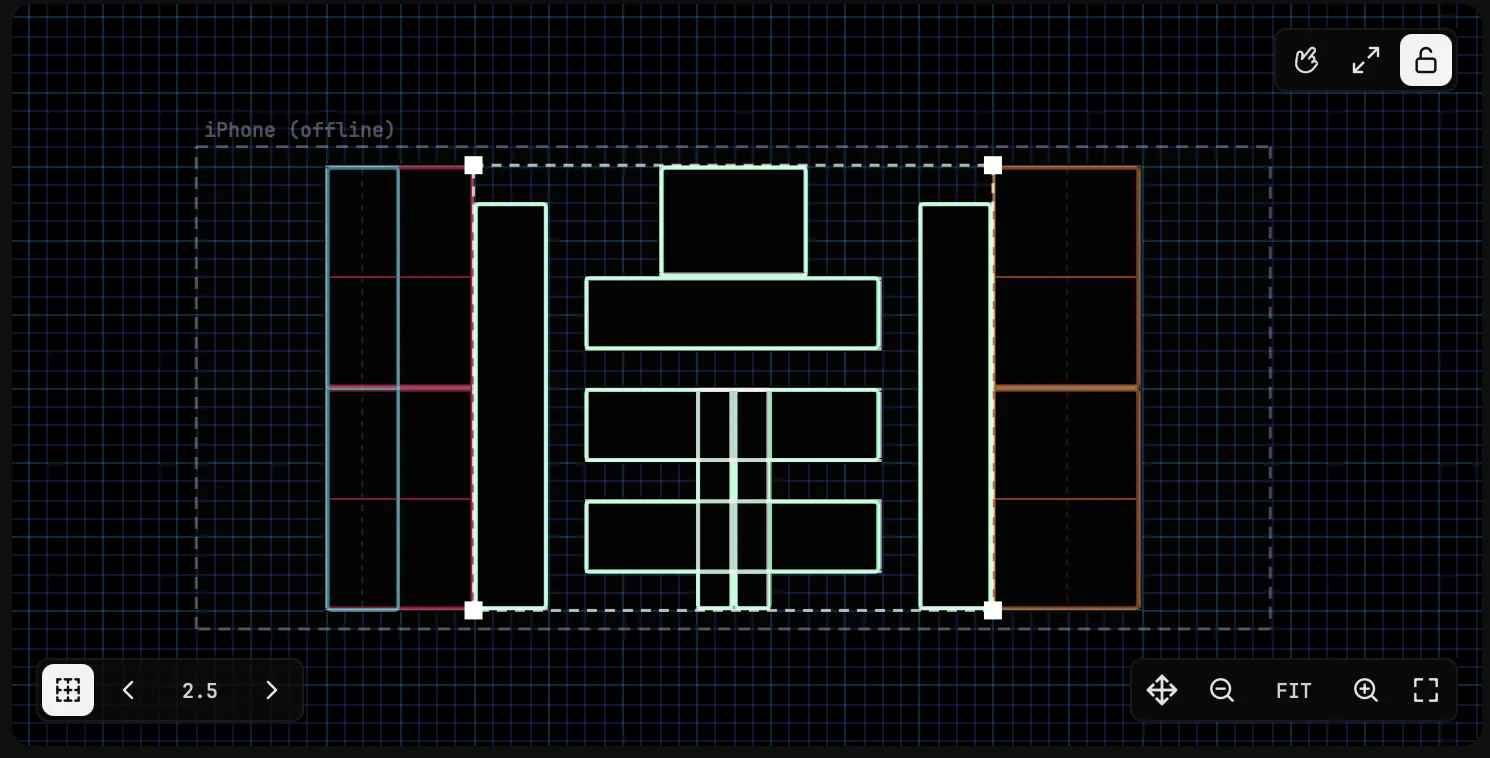
Its tools sit in its corners:
- Top right: the padlock, to lock the playground and play it, or unlock it and edit it; full size button, to hide everything but the playground; and Gesture markers, to show or hide the gesture marks on your devices.
- The clock follows your local time and changes how the playground looks. You can drag it as you would a slider to move in the future or the past (Shift-drag lets you fast time-travel). Each day looks slightly different but the same date and time will look the same for all DRUW users.
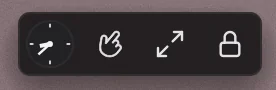
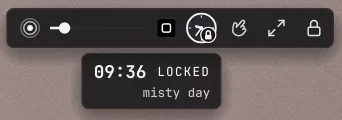
- When the time is changed, the clock will have a little padlock meaning it is frozen. One click on the clock and it will bring you back to the present, unfrozen. When no padlock is present, time will advance and the playground look will change. Time-travel, find a look you like, freeze it and it will be saved in the preset.
- Hovering the clock will reveal some graphics option for the playground look.A slider to the left that changes how far light reaches: This setting influences the amount of light emmitted by the pads when idle, when trigged, and also by the mouse pointer. On the right of this slider is a toggle for the “Classic look”: a plain black playground without the bells and whistles which can be desirable for readability or better performance
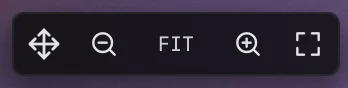
- Bottom right: the zoom.
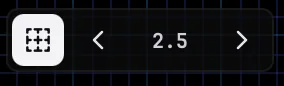
- Bottom left, when the playground is unlocked: the grid.
INSTRUMENTS, below the playground: one row per instrument, with its pads and their gestures.
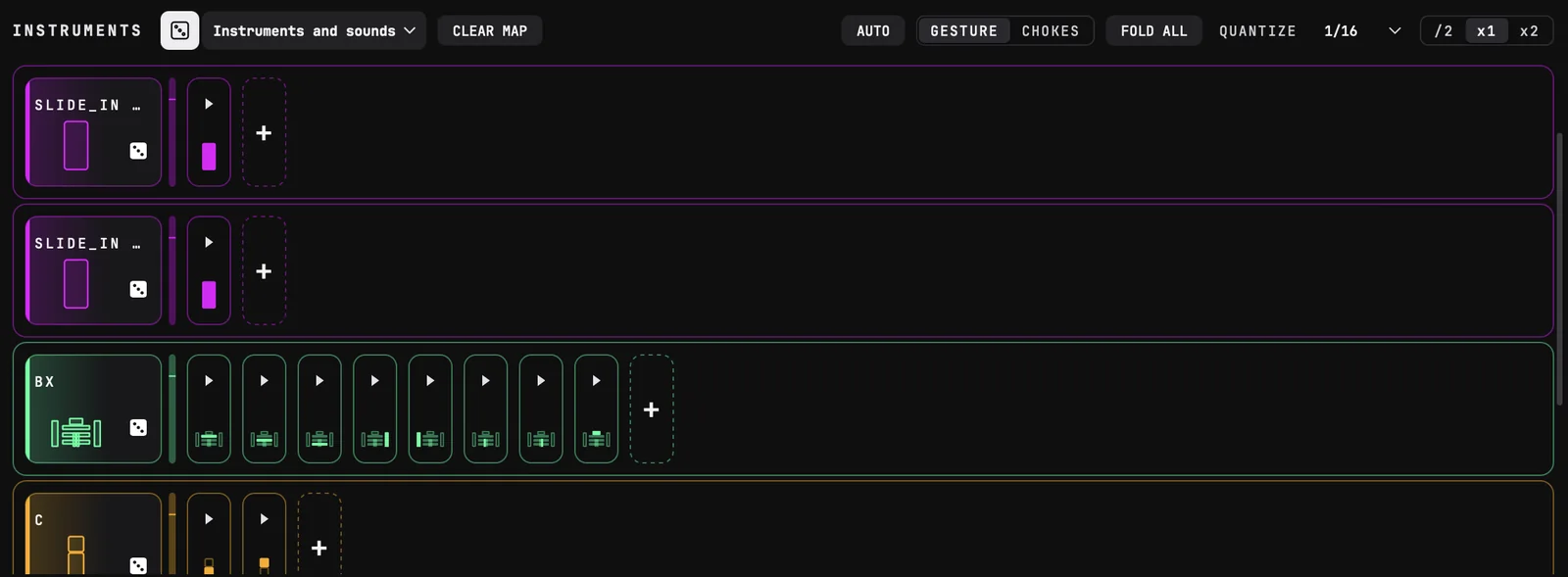
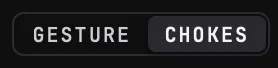
Its header holds the dice and its dropdown, AUTO, the GESTURE | CHOKES switch, FOLD ALL, the playground's Quantize and CLEAR MAP. Drag the bar between the playground and INSTRUMENTS to give more room to one or the other.

The right column: two tabs at its top, EDIT and DEVICES, and a third, ROOMS, when session rooms are turned on.
- EDIT
- the settings of the instrument or the pad you selected. With nothing selected, it reads « Pick an instrument on the left to edit it. »
- DEVICES
- your phones and tablets.
- ROOMS
- the room this DRUW plays in, with its number on the tab. It only shows when session rooms are turned on, in SETTINGS › SESSION (see chapter 10).
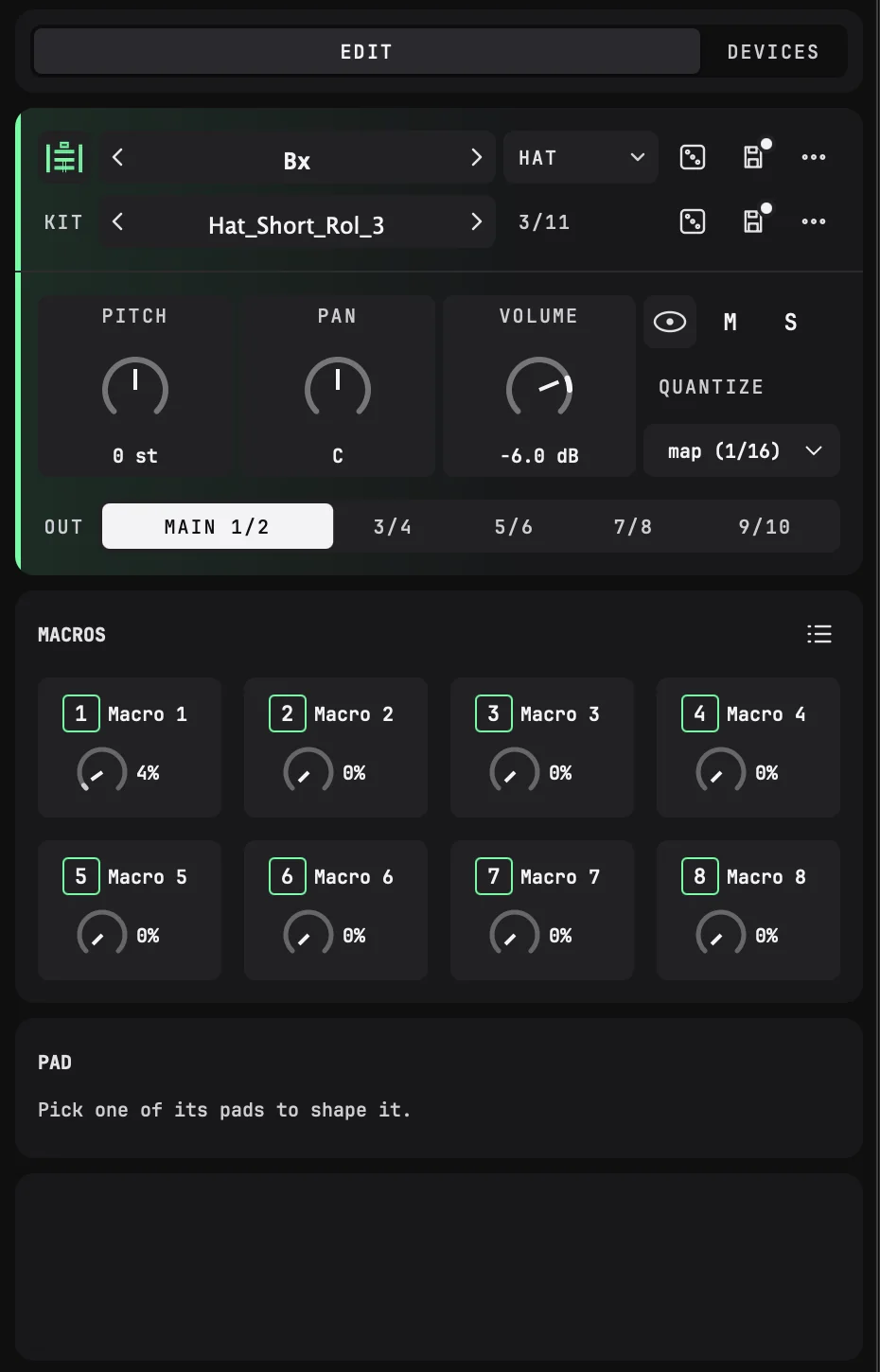
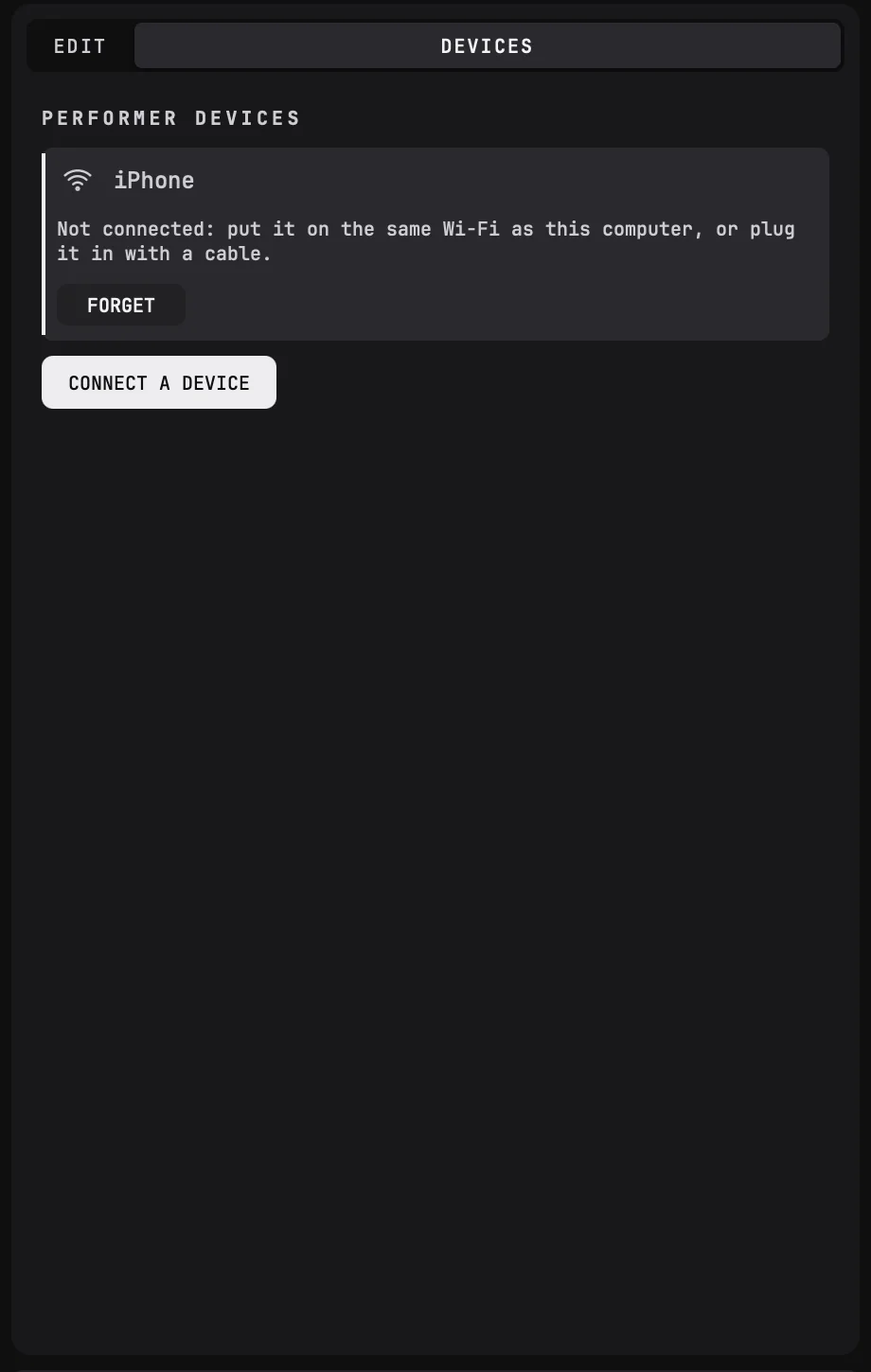
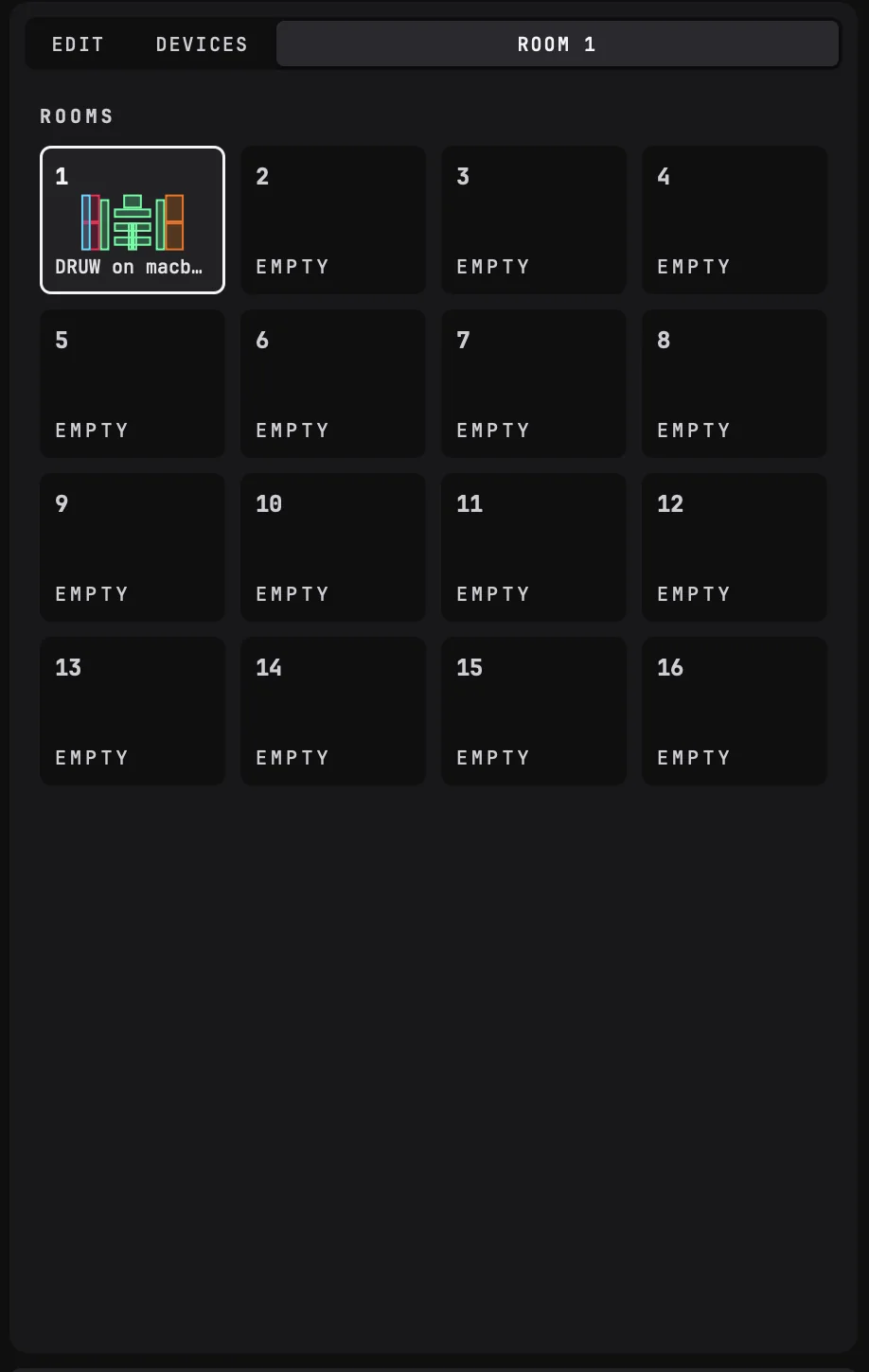
The footer, at the bottom: hover over any element to read what it does. When nothing is hovered, it shows how many MIDI notes and CCs your playground uses (« NOTES 24/128 · CC 6/119 »).
Key concepts
- Playground
- all the pads of your instruments, laid out together, as they appear on your devices. You see, play and edit it in the middle of DRUW. It is shared by your devices and by every DRUW in the same room, and saved with your DAW project.
- Instrument
- a group of pads that play together, for example a kick, a hat or a perc. Each instrument has a type (KICK, SNARE, HAT…). DRUW comes with a library of instruments, and you can save your own.
- Pad
- a touch area of the playground.
- Gesture
- what you do on a pad: touch it, slide into it across one of its edges, or shake your finger on it. Each gesture plays its own sample.
- Kit
- the set of samples an instrument's pads play. An instrument can hold several kits: switch kit, and the same pads play other samples.
- Macro
- a control that moves several sound settings of an instrument at once. The position of your finger on a pad can turn macros while you play.
- Preset
- all the instruments of one DRUW, saved together.
02CONNECT YOUR PHONE OR TABLET
DRUW is played from a touch device. Your phone or tablet connects to DRUW through the free BEATSURFING Performer app, over your Wi-Fi network or with a USB cable.
Install the Performer app
Click the DEVICES tab at the top of the right column. If no device has joined DRUW yet, it shows two QR codes: scan the one for your device to install the Performer app from the App Store (iPhone, iPad) or Google Play (Android).
Join DRUW
- Put your device on the same Wi-Fi network as your computer, or plug it into your computer with a USB cable.
- Open the Performer app.
- Your device finds DRUW on its own: no pairing code, no setup. It appears under PERFORMER DEVICES.
DRUW uses the USB cable when there is one, and Wi-Fi otherwise. Click a device in the list to see how it is connected. To remove a device you no longer use, click it, then click FORGET (or right-click it).
What your device shows
Each device shows its own frame of the playground: when you pick a device in DEVICES, its frame appears on the playground, labelled with the device's name.
- Drag the frame to choose which part of the playground the device shows.
- Drag a corner to make it bigger or smaller. The frame always keeps the shape of the device's screen, so the pads are never stretched.
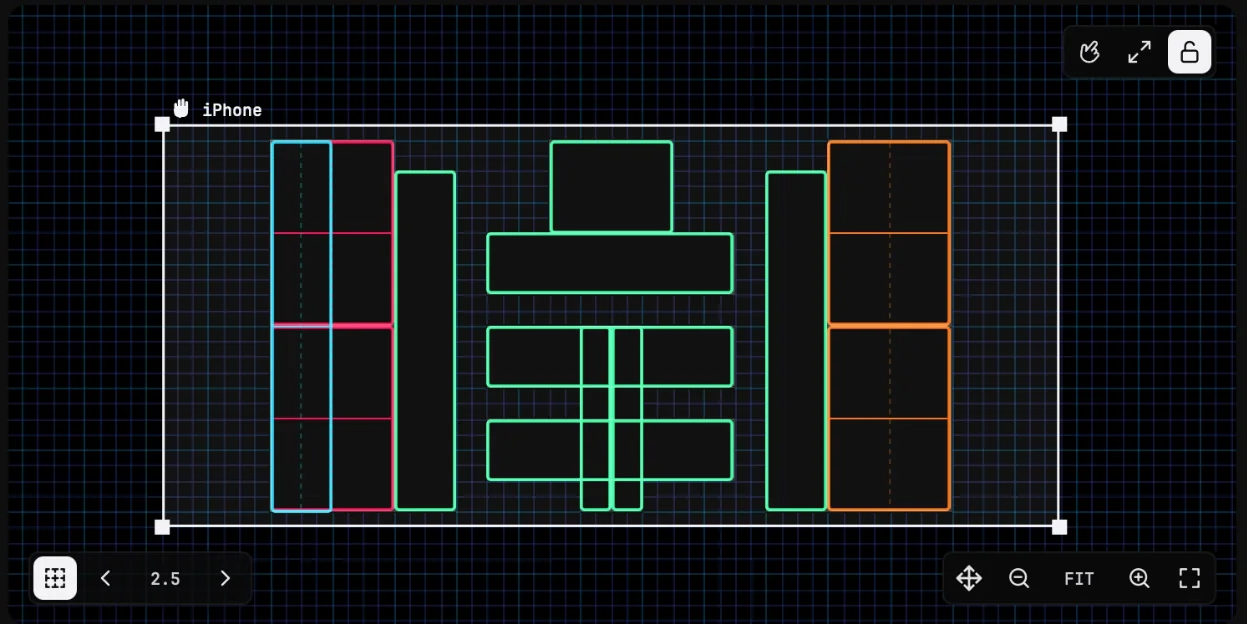
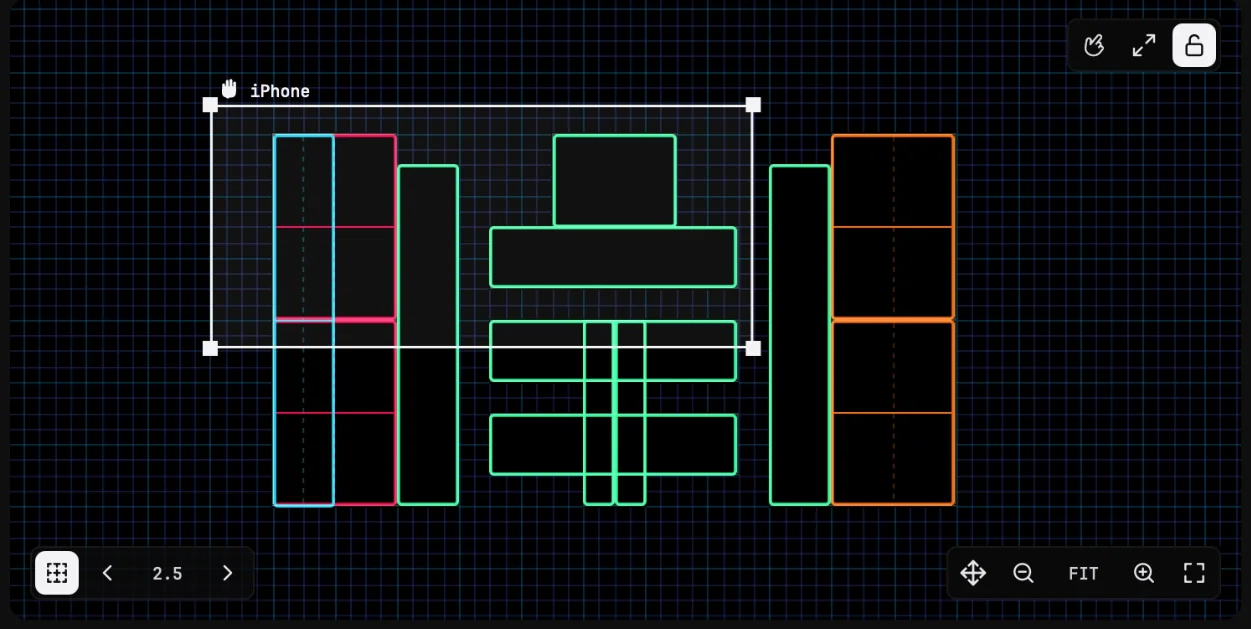
While DEVICES is open, the playground is unlocked and its pads can't be clicked: the playground belongs to the frames.
If session rooms are on, your device only finds the DRUWs in its own room (see chapter 10).
03PLAY
Once your device has joined DRUW, it shows the playground: every pad of your instruments, in their colors. Everything you play on it is heard in DRUW, in your DAW.
Slide, don't just tap
DRUW is played with movement. Slide your finger across the pads: every time your finger enters a pad, it plays. A single stroke across several pads plays a whole phrase, and the speed of your movement becomes the rhythm.
Each pad can answer to several gestures, and each gesture plays its own sample:
- Touch: put your finger down on the pad.
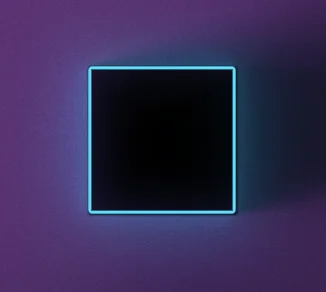
- Slide in: enter the pad across its left, right, top or bottom edge. Entering the same pad from the left or from the right can play two different samples.
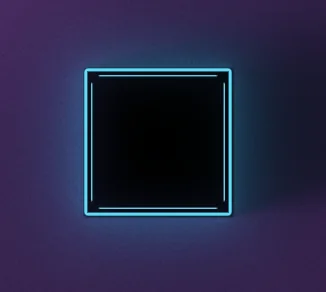
- Shake: keep your finger on the pad and move it back and forth, left and right or up and down. Each change of direction plays.
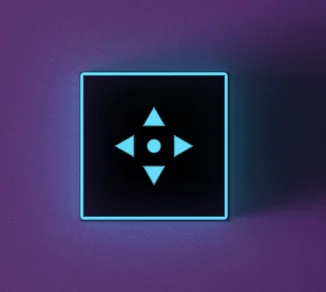
The instruments of the library come with their gestures already set. You can change what each pad answers to and what it plays.
Lock and unlock the playground
The padlock at the top right of the playground switches between playing and editing:
- Locked: the playground plays. Click and drag on the pads with your mouse to play them, as you would with your finger.
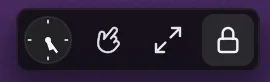
- Unlocked: the playground is ready to edit. Clicks select, move and resize pads.
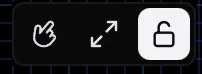
Shortcuts: Caps Lock toggles the padlock, and holding Shift locks the playground for as long as you hold it, so you can play a pad while editing.
Quantize
Quantize moves each hit to the nearest division of your DAW's grid. Use it to keep your performance tight, or turn it off for a loose, human feel.
Quantize is set at three levels, each one following the level above until you change it:
- Playground: the Quantize menu at the right of the INSTRUMENTS header. 1/16 by default.
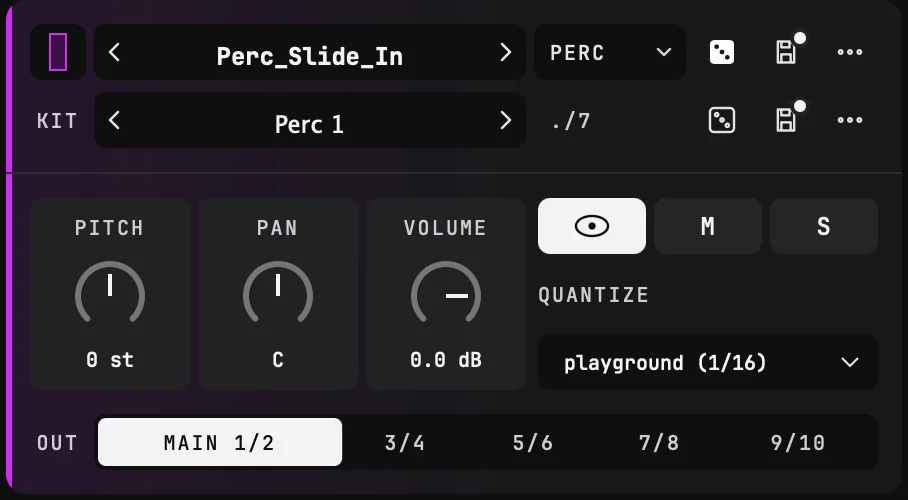
- Instrument: QUANTIZE in the EDIT tab. By default it shows « playground » and the playground's value, for example « playground (1/16) ».
- Pad: the quantize menu of the pad, at the top of its sample editor. By default it shows « instrument » and the instrument's value.
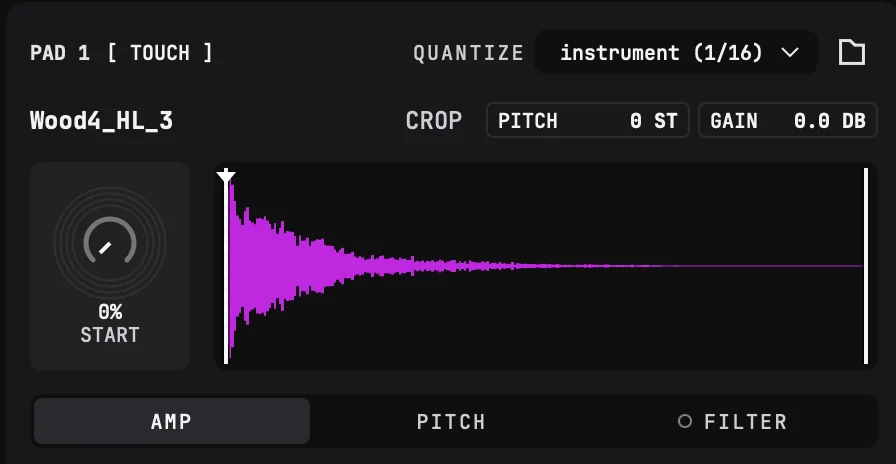
Available values: Off; straight 1/4, 1/8, 1/16, 1/32; triplets 1/4T to 1/32T; quintuplets 1/8Q to 1/32Q.
Available values: Off; straight 1/4, 1/8, 1/16, 1/32; triplets 1/4T to 1/32T; quintuplets 1/8Q to 1/32Q.
Two more controls sit with the playground's Quantize:
- /2 | x1 | x2: play every grid of every instrument at half speed, as set, or at double speed. With /2, a 1/16 plays as 1/8; with x2, as 1/32.
- Force off, in the playground's menu: turns quantize off everywhere, whatever each instrument and pad says. Choose a value again and every level gets back its own setting.
AUTO
Turn on AUTO in the INSTRUMENTS header: each pad you play, from any device, is selected, and the EDIT tab shows it with the sample it played. It's the quickest way to find the pad or the sample you want to change. While you hold a knob in the EDIT tab, the selection waits until you let go.

Record your performance: DIRECT | DAW REC
The DIRECT | DAW REC switch in the header sets the route your pads take:
- DIRECT (default): your pads play DRUW straight away. You hear them, but your DAW receives no MIDI.
- DAW REC: your pads go through the BEATSURFING bridge to your DAW, as MIDI. Your DAW records them and sends them back to DRUW, which plays them.
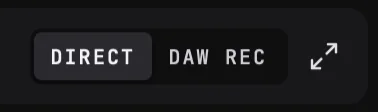
To record:
- Set the switch to DAW REC.
- Open DEVICES: the top of the panel shows this DRUW's MIDI channel: « DAW REC: In your DAW, set this track's MIDI input to BEATSURFING, channel 1. »
- In your DAW, enable the BEATSURFING MIDI port as an input if needed (see your DAW's manual). Set the DRUW track's MIDI input to BEATSURFING, on that channel.
- Arm the track, or turn on its input monitoring, and record as usual. When you play the clip back, DRUW plays the recorded pads.
- In DAW REC, DRUW only hears what comes back from your DAW: if the track is neither armed nor monitoring its input, you won't hear anything.
- Each DRUW has its own MIDI channel. If you use several DRUWs, set each track to its own channel, or every track will play every DRUW's pads.
- DAW REC needs the BEATSURFING bridge running on this computer. It is installed with DRUW and starts when you log in. If it isn't running, DAW REC is faded: click it, then START BEATSURFING bridge.
- The switch applies to every DRUW in the same room.
04ROLL THE DICE
You don't need to build a playground from scratch to start playing. Roll one, play it, and roll again until it feels right.
Roll the whole playground
Click the dice next to INSTRUMENTS, below the playground, with Instruments and sounds selected in the dropdown beside it.
- On an empty playground, DRUW picks one of the factory presets at random and rolls it, as the dropdown beside the dice says. The header shows an invented name, for example « ROLLING_SWELL* »: save it as a preset if you like it.
- When the playground has instruments, each one is replaced by another instrument of the same type, in its place and at its size, with a random kit. A kick stays a kick, a hat stays a hat. An instrument with one pad becomes another one-pad instrument; an instrument with several pads becomes another one with several pads.
Your device shows the new playground right away, so you can keep playing while you roll.
Instruments without a type (for example the ones you made from your own samples, until you give them a type) are never rolled.
What a roll changes
A small dropdown sits beside the dice. Click it, or right-click the dice, to choose what a roll changes:
- Instruments and sounds
- each instrument is replaced by another of its type, with its own sounds.
- Sounds only
- the instruments stay, with their pads, gestures and place on the playground, and only their sounds are drawn again.
The dice of each instrument follow the same choice.
Where the sounds come from
The dice draws its sounds from the sample folders you mark in the SAMPLES tab of the browser:
- With no folder marked, each instrument keeps to the kits it already has.
- With folders marked, the dice builds a kit from the samples of those folders, picking a sample of the right type for each sound.
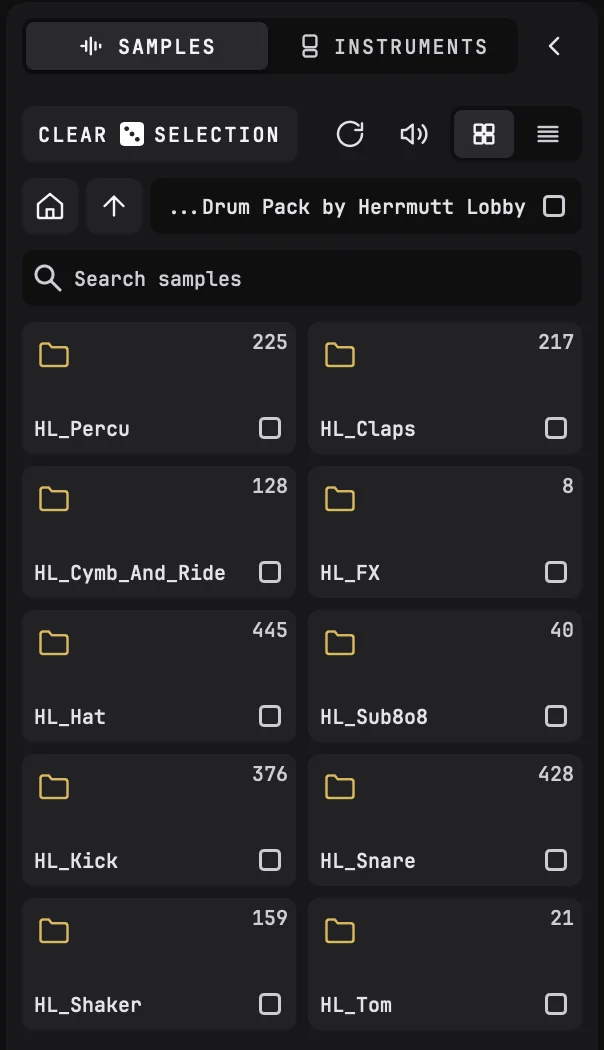
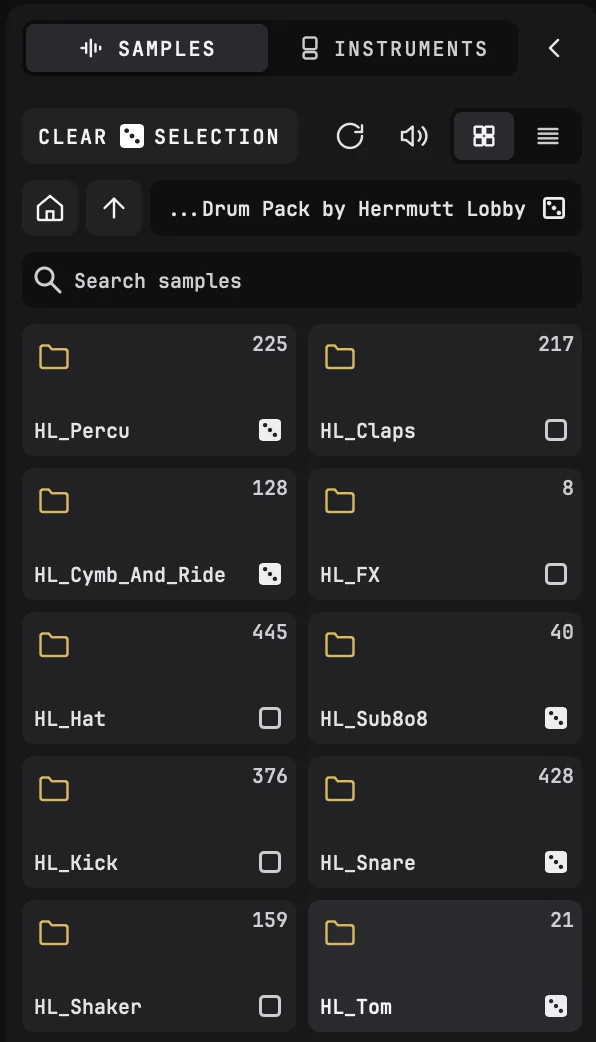
Each folder has a mark: click it to include the folder and its subfolders, click it again to leave them out. A solid dice means all of the folder is used, an outline that part of it is, an empty square that none of it is. CLEAR SELECTION unticks every folder, and the dice goes back to the kits. By default, the factory samples and yours are all selected.
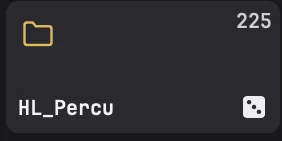
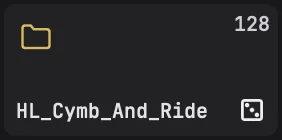
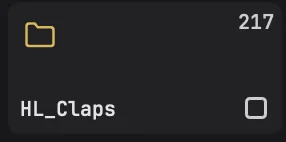
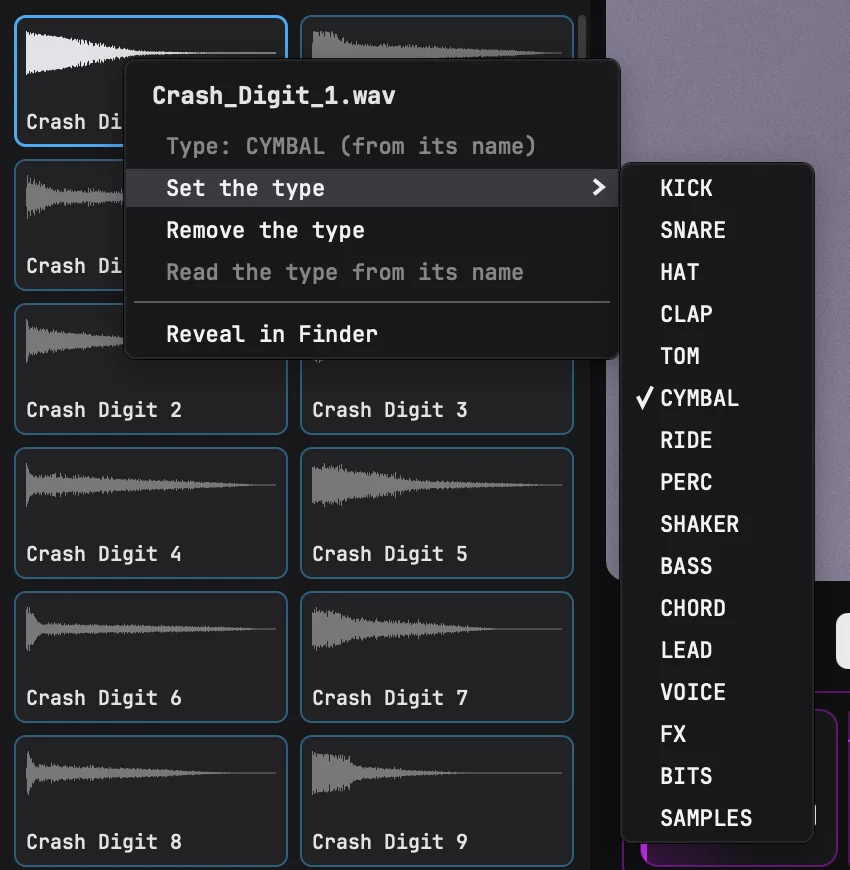
Only samples that have a type are drawn. DRUW reads the type from the name of the sample or of its folder; right-click a sample to set it yourself. If the chosen folders hold no sample of the type a sound asks for, that sound stays as it is.
A sound that has no sample, or whose sample file is gone, plays nothing: a pad that plays only such sounds is darkened on the playground, and its instrument wears a mark. Drop a sample on the sound to fill it. The dice never empties a sound.
After a roll from samples, the kit is named after its type and a number, for example « Kick 1 », until you save it.

Start from an empty playground
Click CLEAR MAP, at the right end of the INSTRUMENTS header, to take every instrument off the playground at once. Undo brings them back.

Roll a single instrument
When you like most of your playground but not one instrument, roll only that one:
- Click the dice in the corner of its row, in INSTRUMENTS.
- Or open the instrument and use < and > around its name to step through the instruments of the same type, or its dice to pick one at random.
What an instrument's dice does follows the dropdown beside the main dice: with Instruments and sounds, the instrument is replaced by another of its type; with Sounds only, it stays and only its sounds are drawn again. The < and > around its name always step through the instruments of the same type.
A new instrument takes the old one's place on the playground, with its chokes and its output.
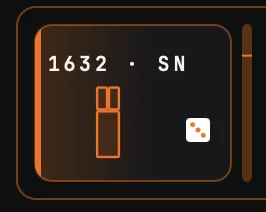

Roll a kit
To keep an instrument but hear it with other samples, use its KIT line: < and > step through its kits, and its dice draws a new one: a kit built from the samples of the folders you marked in the SAMPLES tab or, with no folder marked, one of the instrument's other kits.

Undo
Rolling replaces instruments completely, including any change you made to them. If you go too far, click Undo in the header: a whole roll, or a CLEAR MAP, is undone in one step.
when an instrument sounds just right, save it to your library before rolling again.
05BUILD YOUR PLAYGROUND
Rolling gives you a playground in one click. To go further, build it yourself: add instruments from the library or from your own samples, then place and size every pad the way you like to play.
Unlock the playground first: click the padlock at its top right. Lock it again to play.
The browser
The browser, on the far left, has two tabs:
- SAMPLES
- audio files, to make new pads or to change what a pad plays.
- INSTRUMENTS
- ready-to-play instruments, with their pads, gestures and kits.
Click a tab icon to open the browser; click the chevron to fold it.
Add an instrument
- Open the INSTRUMENTS tab. Choose FACTORY for DRUW's instruments, or USER for the ones you saved.
- Click a type to show only those instruments: KICK, SNARE, HAT, CLAP, TOM, CYMBAL, RIDE, PERC, SHAKER, BASS, FX… or ALL.
3. Audition: click an instrument. It appears in a thumbnail, at the top of the browser: click its pads to hear them, or drag across them. Use < and > to step through the list.
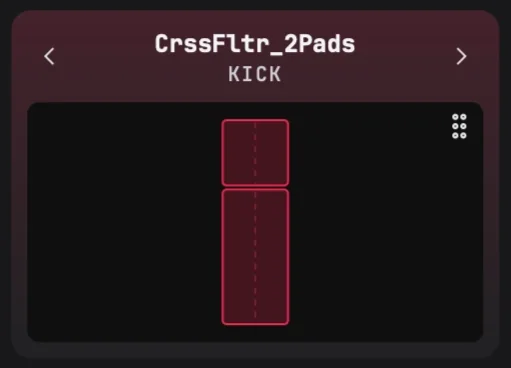
4. Add it: drag it onto the playground, where you want it, from the list or by the grip (six dots) in the corner of the audition area. Or double-click it: it lands in the middle of the part of the playground you're looking at.
Dropping an instrument on a row in INSTRUMENTS replaces that instrument.
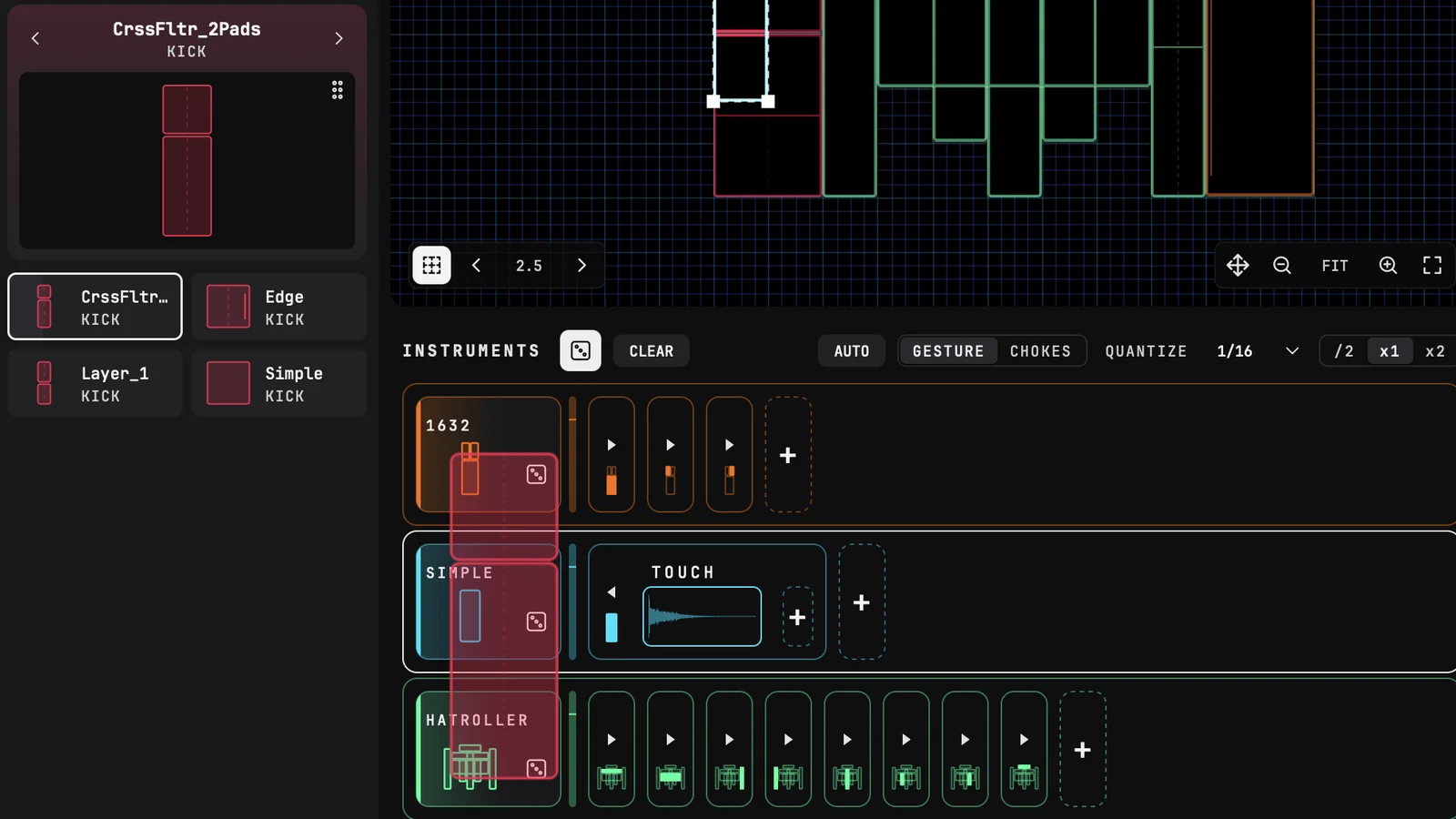
To delete one of your own instruments from the library, right-click it.
Add your own samples
Accepted file types: WAV, AIF/AIFF, FLAC, OGG, MP3, M4A.
In the SAMPLES tab:
- Click HOME, at the left of the path, to see FACTORY, DRUW's samples, and USER, yours. Open a folder to see its samples; the up arrow goes back.
- To add your own folders, click the + tile (ADD OR DROP SOUNDFILES) at the foot of the list, or drop a folder on it. Drop sound files on it and DRUW copies them to a new folder, Dropped samples.
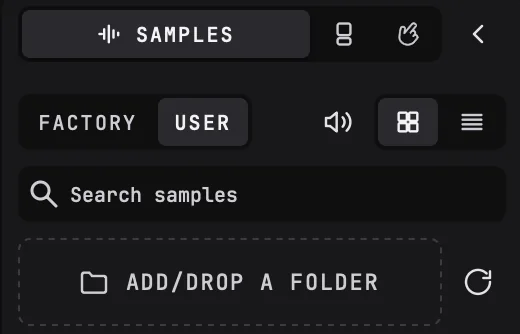
- Click a sample to hear it. Use the search field to find one by name.
- Right-click a sample to set its type, or to show it in the Finder (Mac) or the Explorer (Windows).
Drag samples onto the playground, from the browser or straight from your computer:
- with no instrument selected, they make a new instrument, with one pad per sample;
- with an instrument selected, they are added to it, one new pad per sample.
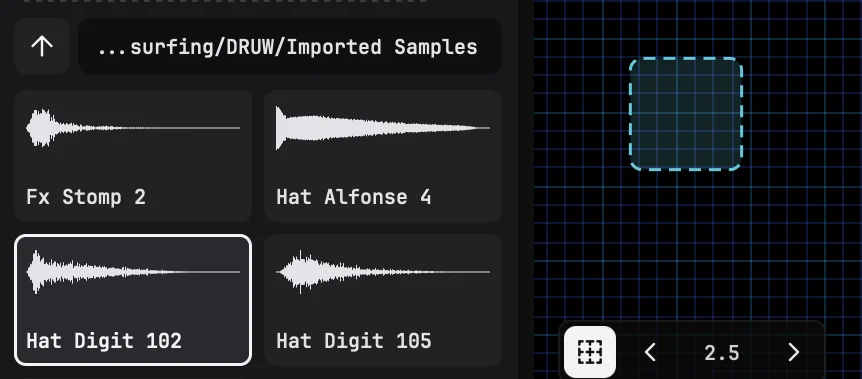
You can also drop a sample in INSTRUMENTS: below the last row or between two rows to make a new instrument there, at the end of a row to add a pad to that instrument, or onto a gesture to change what it plays.


Drop up to 16 files at a time.
Select instruments and pads
On the unlocked playground:
- Click a pad to select its whole instrument; click it again to select only that pad. Double-click a pad to go back to the whole instrument.
- Drag on an empty area to draw a selection rectangle: it takes the pads it touches, even from different instruments.
- Click an empty area to deselect.
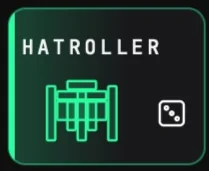
In INSTRUMENTS:
- Click an instrument's header, or an empty area of its row, to select the whole instrument.
- Click one of its pads to select that pad.
Move and resize
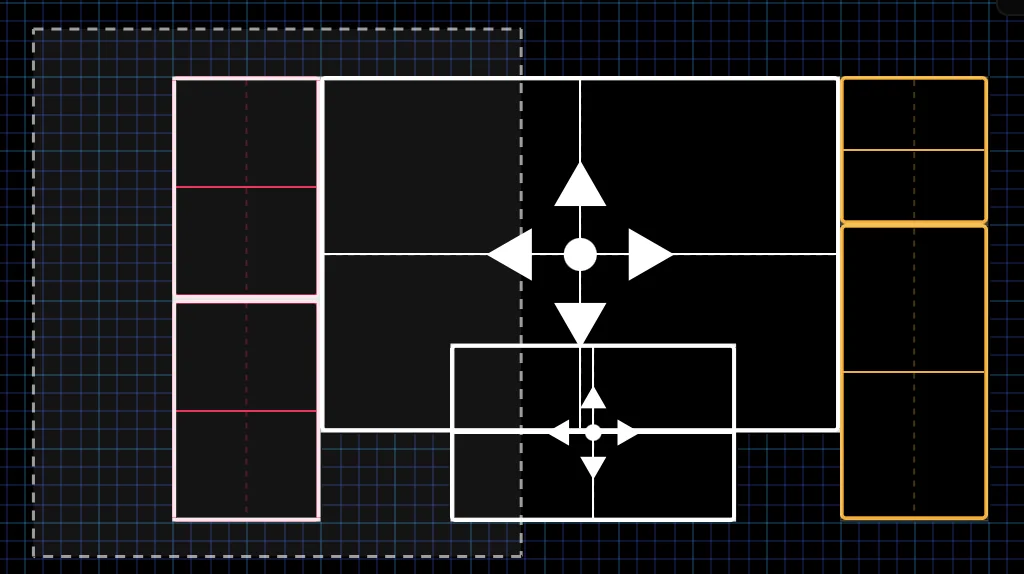
- Move
- drag the selection, or nudge it with the arrow keys (Shift+arrow moves it further).
- Resize
- drag a corner of the selection.
- Grid
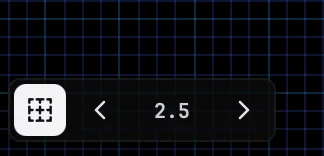
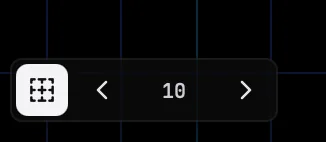
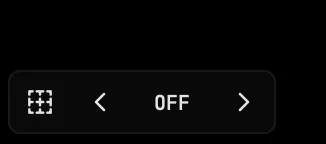
- the grid at the bottom left of the playground makes pads snap to it. Turn it on or off with its icon, and use < and > to make it finer or coarser: its size reads as a percentage of the playground, from 1.25 to 80 (2.5 by default). Hold Alt while you drag to place freely. Press G to snap the selected pads to the grid.
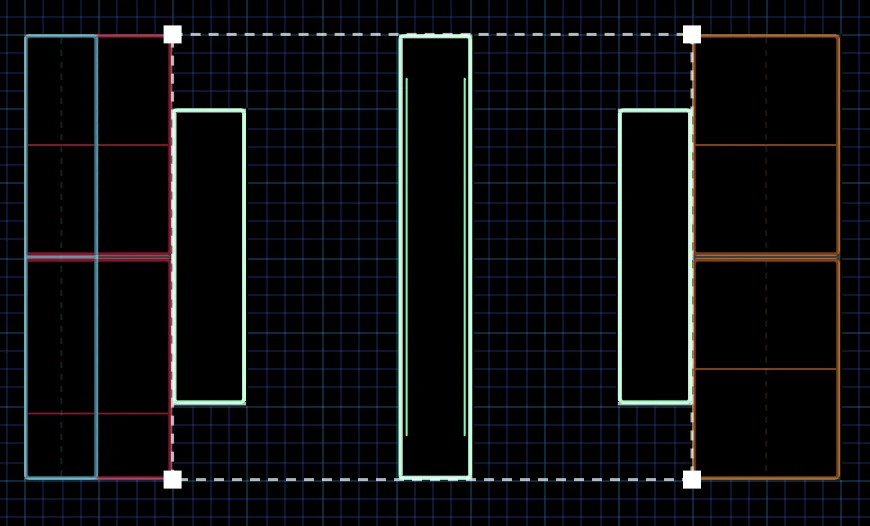
Pads can overlap: when your finger is on several pads at once, they all play.
Organize your instruments
- Duplicate
- Cmd+D (Mac) / Ctrl+D (Windows), or right-click › Duplicate.
- Delete
- Delete or Backspace, or right-click › Delete.
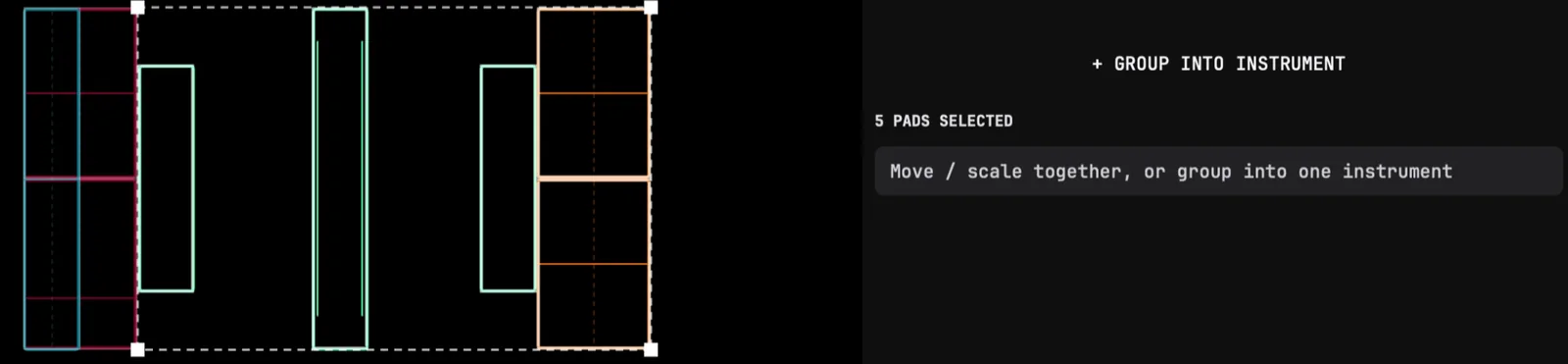
- Group into one instrument
- select pads of several instruments, then click + GROUP INTO INSTRUMENT in the EDIT tab.
- Stacking
- when instruments overlap, bring one to the front or send it to the back from its ⋯ menu, or drag its row up or down in INSTRUMENTS.
- Hide
- click the eye of an instrument. A hidden instrument doesn't show or play on your devices.
Navigate the playground
- Zoom
- use the mouse wheel, or the − and + buttons at the bottom right of the playground. Pinch on a trackpad.
- See the whole playground
- click the zoom percentage.
- Pan
- hold Space and drag, drag with the middle mouse button, scroll with two fingers on a trackpad, or drag the grip next to the zoom.
- Full size
- the button at the top right hides everything but the playground; click it again to come back.
06SHAPE AN INSTRUMENT
INSTRUMENTS
Below the playground, INSTRUMENTS shows one row per instrument. On the left of each row, a level meter and the instrument's chip: its name and a small preview of its pads, with its dice in the corner. Then come its pads, each with its gestures.
- Click a chip to open the instrument in the EDIT tab. Double-click it to open or fold all its pads.
- Drag a row up or down to change the stacking order. Hold Alt to drag a copy.
- Right-click a chip to duplicate or delete the instrument, or to change its stacking order.
- FOLD ALL folds every pad, to get an overview.
The EDIT tab
The top of the EDIT tab holds the instrument's settings:
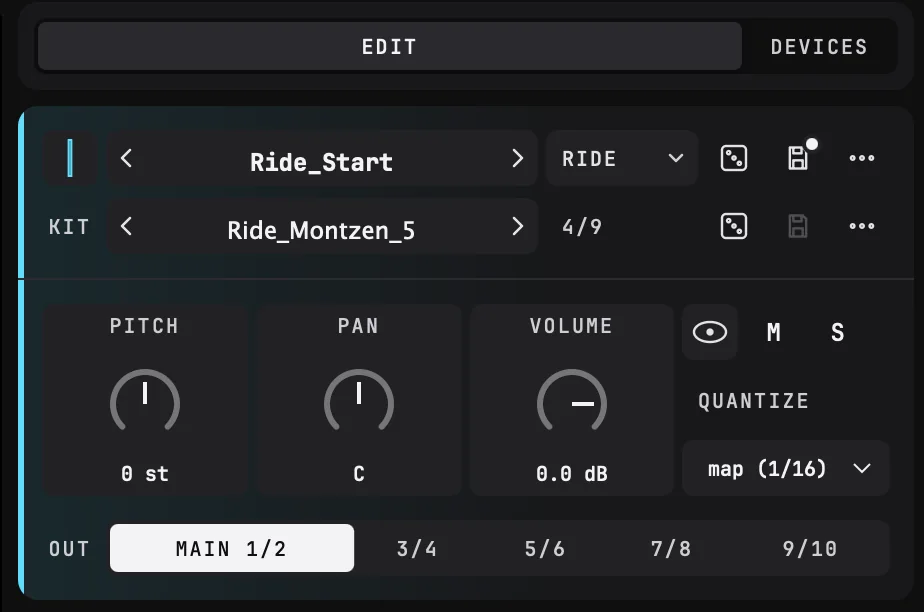
- Chip: click it to choose the color of the instrument and its pads.

- Name: type to rename it. < and > around it swap the instrument for the previous or next one of the same type.
- Type: KICK, HAT… Click it to change the type, or to create your own.
- Dice: swap the instrument for a random one of the same type.
- Save: save the instrument to your library. A white dot on the icon shows that you have changes to save.
- ⋯: stacking on the playground (Bring to front, Bring forward, Send backward, Send to back) and Delete this instrument.
- KIT: the instrument's kits (see below).
- PITCH, PAN, VOLUME: for the whole instrument, on top of each sample's own settings. Drag them up or down; double-click to reset.
- Eye: show or hide the instrument on your devices. M mutes it, S solos it.
- QUANTIZE: « playground » by default (the playground's value), or its own value.
- OUT: the DRUW output it plays on: MAIN 1/2, or 3/4 to 9/10. Use separate outputs to mix your instruments on separate channels in your DAW.
Kits
An instrument can hold several kits: each one is a set of samples for its pads. Switch kit, and the same pads play other samples, with the same settings.
The KIT line shows the current kit, with its number (for example 2/5):
- < and >: the previous or next kit.
- Dice: a kit at random.
- Save: keep what the pads play now as a kit. Type a new name to add a kit, or keep the name to update it. An asterisk (*) shows that the current kit has changed.
- ⋯: every kit of the instrument, sorted by tag, with Rename, Tags and Delete. Tags (VINTAGE, PUNCHY, LO-FI…) help you find the kit you want.
Kits are saved with the instrument.
07PADS AND GESTURES
Pads
In INSTRUMENTS, each pad of an instrument is shown in its row, with its gestures.

- Click a pad to select it. Press it to hear it.
- Click the arrow of a folded pad to open it.
- Drag a pad along the row to reorder the pads. Hold Alt to drag a copy. Drop it on another instrument to move it there.
- Right-click a pad to duplicate or delete it.
- Click the dashed + at the end of the row to add a pad. You can also drop samples on it: one new pad per sample.
To name a pad, double-click « PAD » at the top of its sample editor.
Gestures
Each pad shows the gestures it answers to, grouped in four families:
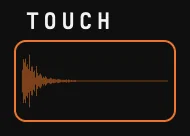
- TOUCH: put your finger down on the pad.
-
SLIDE: enter the pad across its left, right, top or bottom edge.
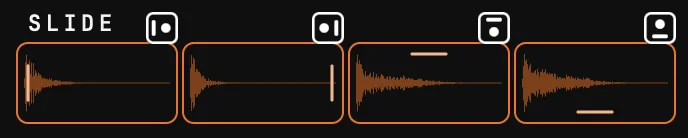
Slide -
SHAKE: move your finger back and forth on the pad: left, right, up or down.

Shake -
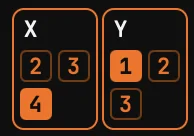
MAP: the position of your finger on the pad, along X (left to right) and Y (bottom to top), turns the instrument's macros. X and Y come with a macro: a pad shows them once the instrument has a macro for them to turn.
Each gesture has its own slot, with the waveform of the sample it plays.
- Click a slot to edit its sample in the EDIT tab. Press it to hear it.
- Drag a sample from the browser onto a slot to change what it plays (REPLACE), or just below it to add a second sample that plays with it (+ LAYER). A gesture can play up to two samples.
- Drag a slot onto another to swap them. Hold Alt to copy.
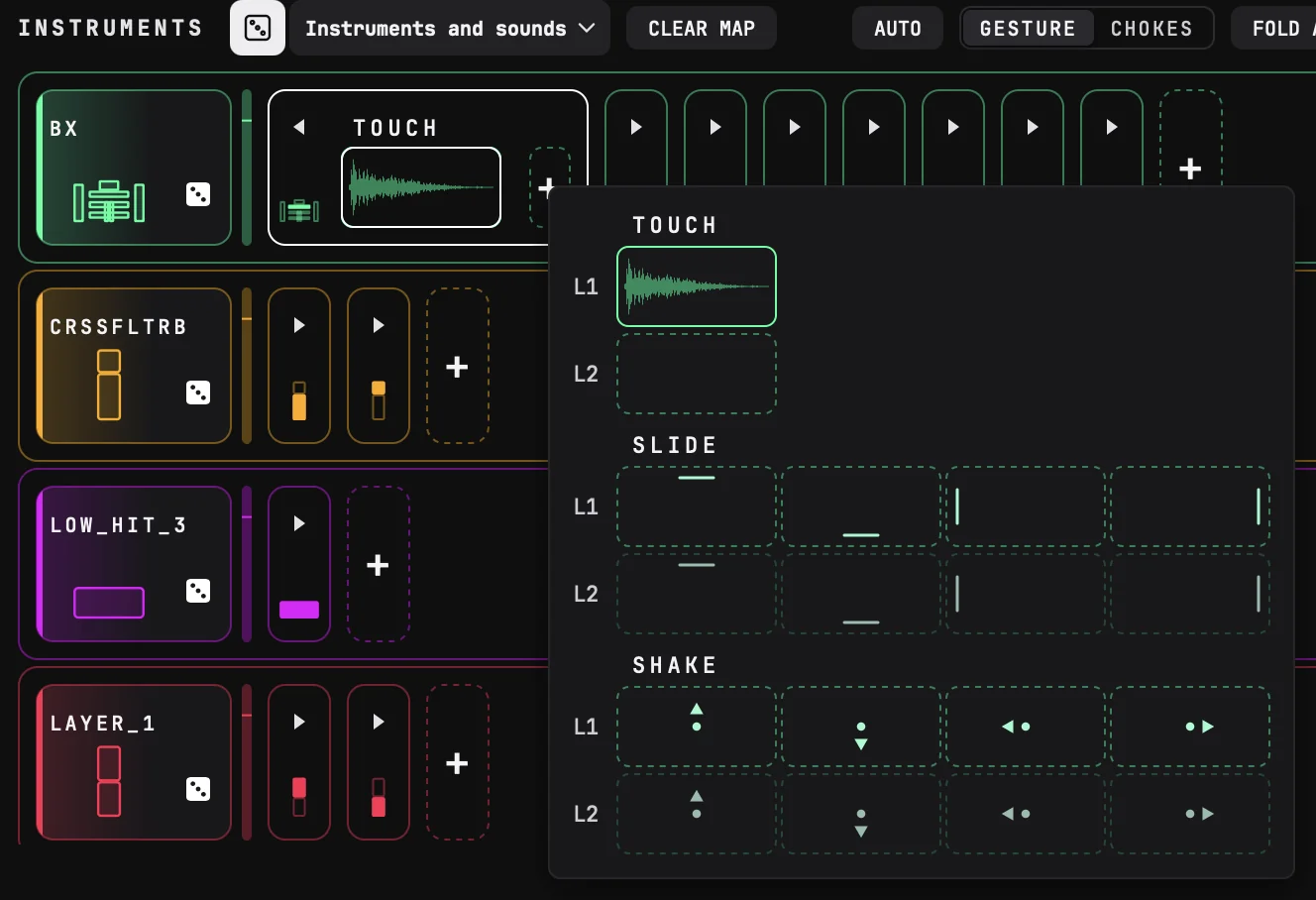
- Drop a sample on a pad: on its + in INSTRUMENTS or on the pad on the playground, let go of the sample there. A small copy of the pad opens, showing TOUCH, SLIDE and SHAKE with two rows each, L1 and L2; the dashed cases are gestures the pad doesn't have yet. Click one to put the sample there: the gesture is added if needed, and the pad opens on it. A slot dragged onto a pad's + opens the same choice, and moves the slot there; hold Alt as you drop it to copy it instead.
- Drop several samples on a pad, and click a SLIDE or SHAKE slot: they fill its row, one per direction, starting from that slot. Directions the pad doesn't have yet are added. On TOUCH, they stack as layers.
- Right-click a slot to remove its sample or the gesture itself.
- Press Delete or Backspace once to empty the selected slot, and again to remove it.
Add a gesture
Click the + after a pad's gestures: a small copy of the pad opens, showing every gesture it doesn't have yet. Click one to switch it on, empty, or drop a sample on it to give it a sound.
Edges and touch: the link icon of an edge slot sets whether sliding in across that edge also plays the pad's Touch, or only the edge.
give two edges of the same pad two different samples, and the direction of your slide chooses the sound.
08SHAPE A SOUND
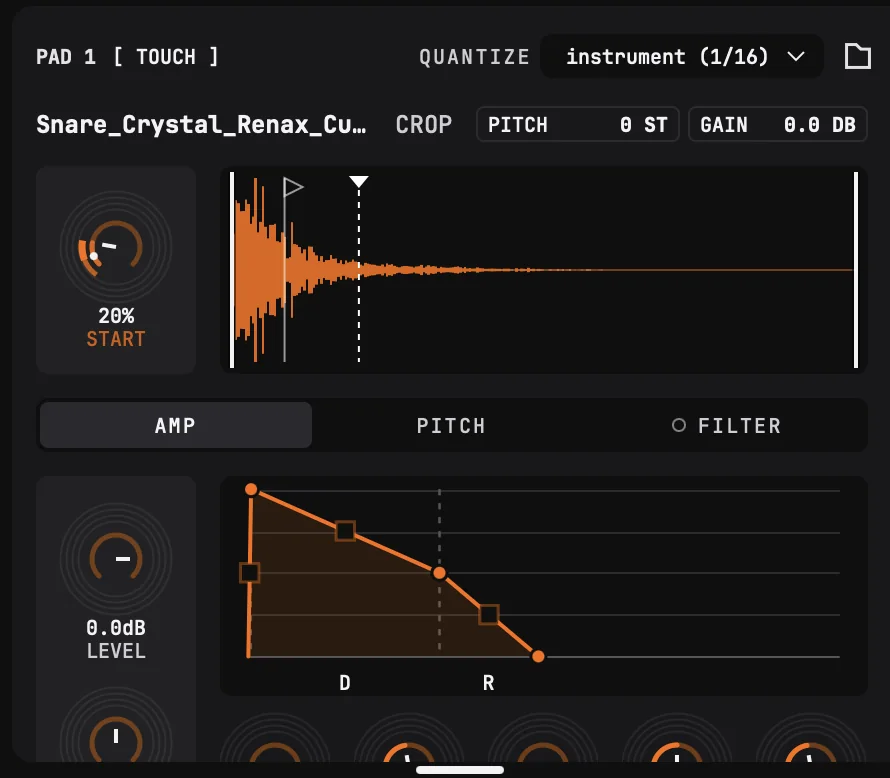
Click a gesture slot to open its sample in the sample editor, in the EDIT tab. Drag the grip between the sample editor and MACROS to give more room to one or the other; double-click it to go back to the automatic split.
Its top shows the pad and the gesture, for example « PAD 3 [ TOUCH ] », with the pad's Quantize and a folder button to pick another audio file.
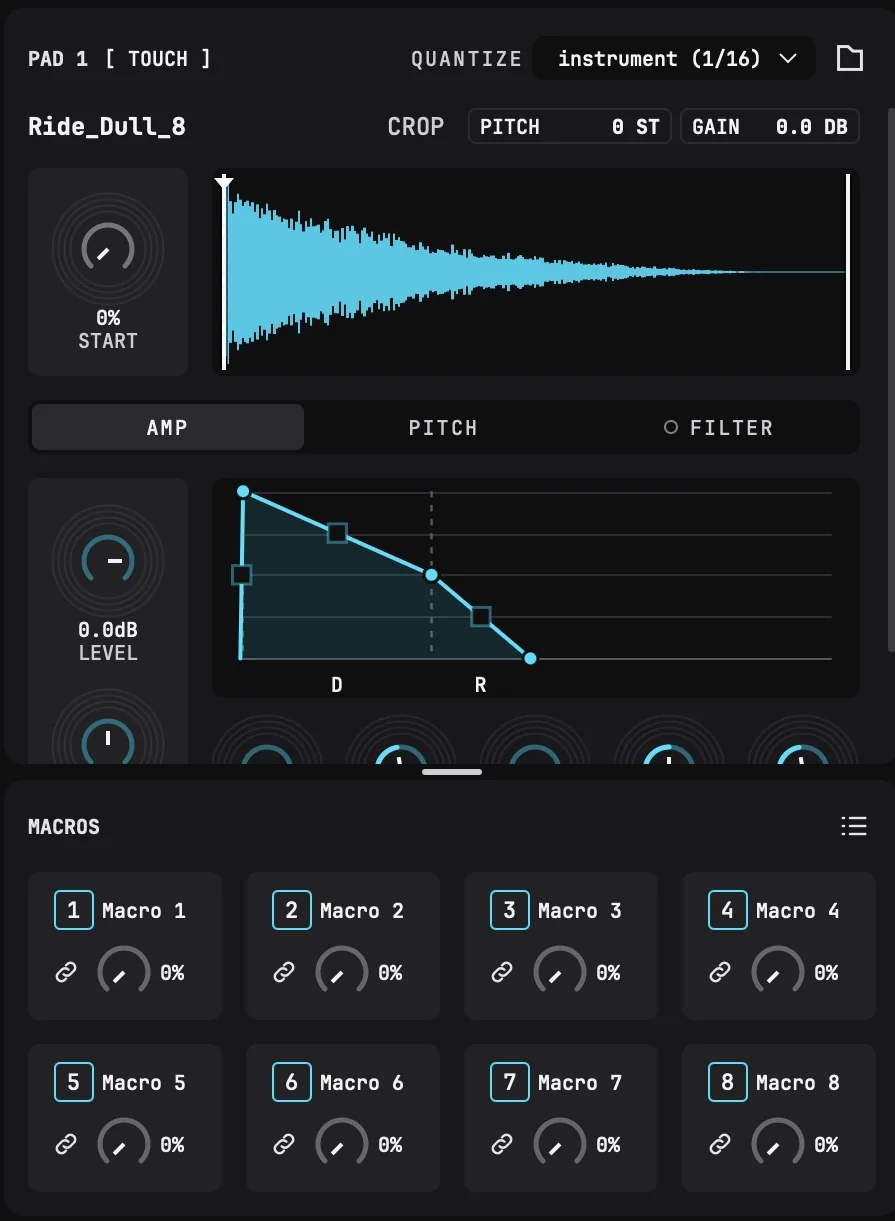
The sample
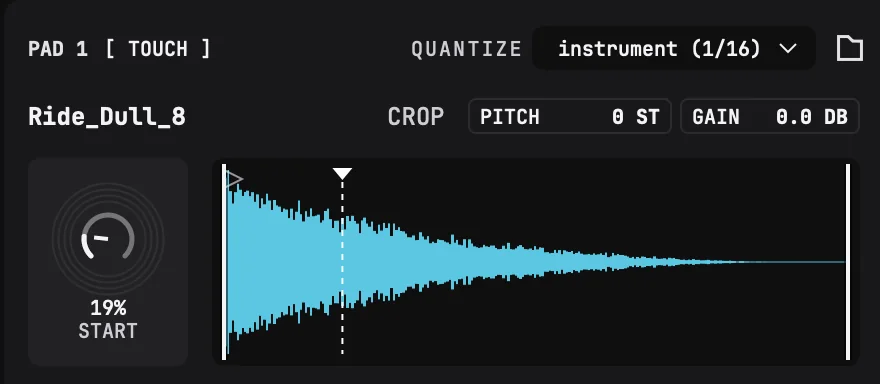
- Name: double-click to rename the sound.
- PITCH and GAIN: trim the sample's pitch (in semitones) and level. Drag up or down; double-click to reset.
- CROP: cut the sample down to its start and end. DRUW makes a new file and leaves the original alone.
- Waveform: drag its flags to choose where the sample starts and ends. Use the mouse wheel to zoom; double-click to fit the flags, and again to see the whole file. Right-click for more.
- START: where the sample starts.
- Drop an audio file on the sample editor to replace the sample.
AMP, PITCH and FILTER
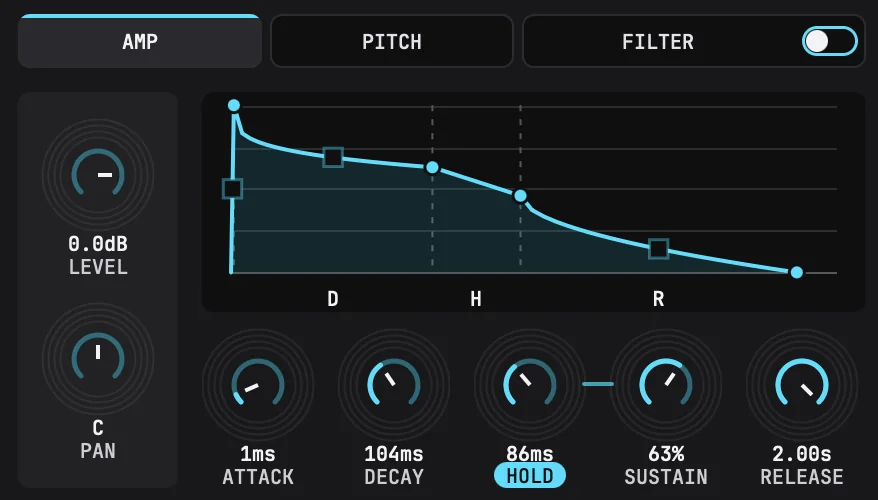
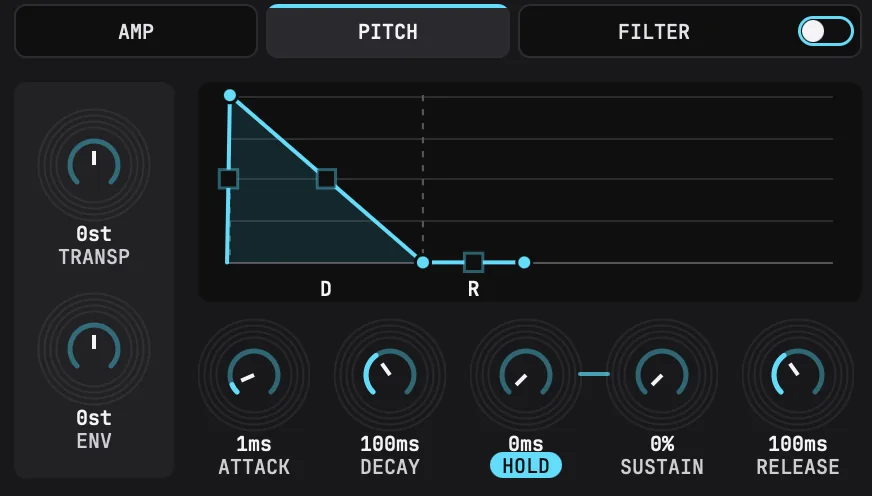
Three modules shape the sound, each on its own tab: AMP, PITCH and FILTER. Click a tab to open it.
- AMP: LEVEL and PAN of the sound, and its volume envelope.
- PITCH: transpose the sound (TRANSP), and how much its own envelope bends the pitch (ENV).
- FILTER: turn the filter on with Enable filter, at the top right of its panel (the dot on the FILTER tab is filled while it is on). Choose LP (low-pass), HP (high-pass) or BP (band-pass), and set its CUTOFF, its resonance (RESO) and how much its envelope moves the cutoff (ENV).
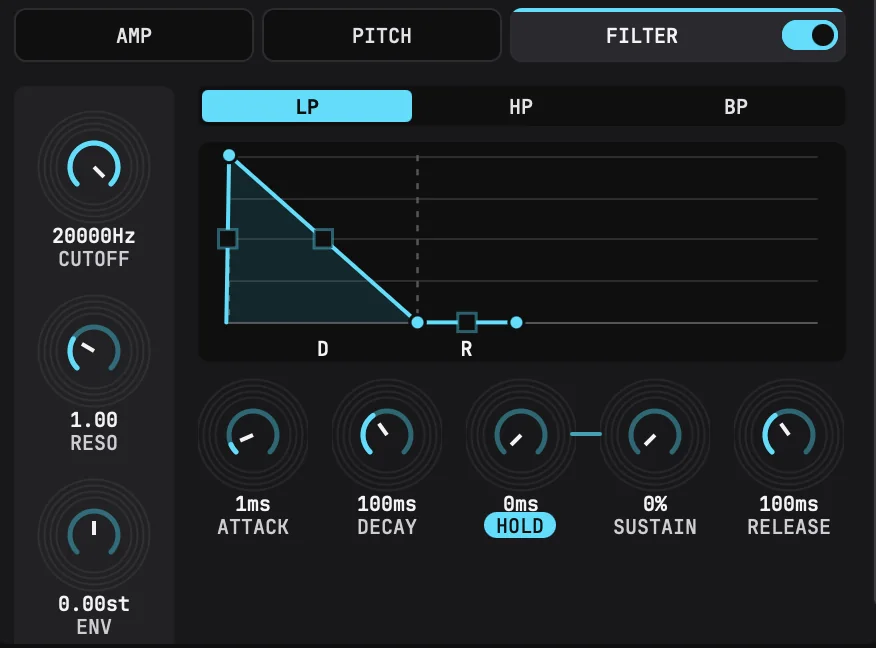
Each module has its envelope, with a graph and five knobs:
- ATTACK
- how long the envelope takes to rise to its maximum.
- DECAY
- how long it takes to fall from the maximum to the sustain level.
- HOLD
- how long the sustain stage lasts.
- SUSTAIN
- the level of the sustain stage.
- RELEASE
- how long it takes to fall from the sustain stage to the end.
On the AMP tab, the envelope always rises to 100 %; on PITCH and FILTER, its ENV knob sets how far it moves the pitch or the cutoff.
Drag the points of the graph to change the times and the sustain; drag a segment to curve it, double-click it to straighten it.
One-shot or gated: click the word HOLD. When it's lit, the sustain stage lasts the HOLD time, and the whole envelope plays at each hit (one-shot). When it's off, the sustain stage lasts as long as your finger stays on the pad (gated).
Knobs: drag to turn, double-click to reset, click the value to type it. Right-click a knob › Copy value to to give the same value to the other gestures of the pad, to the whole pad, or to the whole instrument.
Macros
Each instrument has 8 macros, shown below the sample editor. A macro moves several sound settings at once, by the amount you choose for each one.
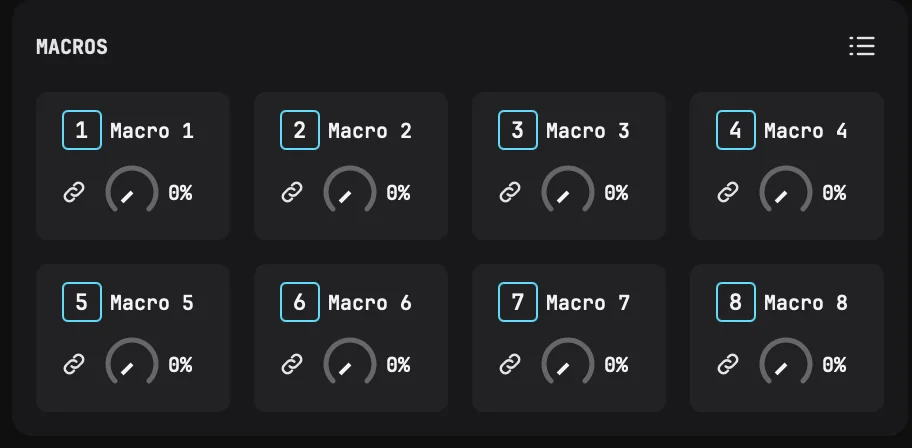
To link a macro to a knob:
- Click the macro's LINK icon.
- Drag any knob of the sample editor: you don't move the knob, you set how far the macro moves it, up or down.
- Repeat on other knobs, other gestures or other pads. Click LINK again when you're done.
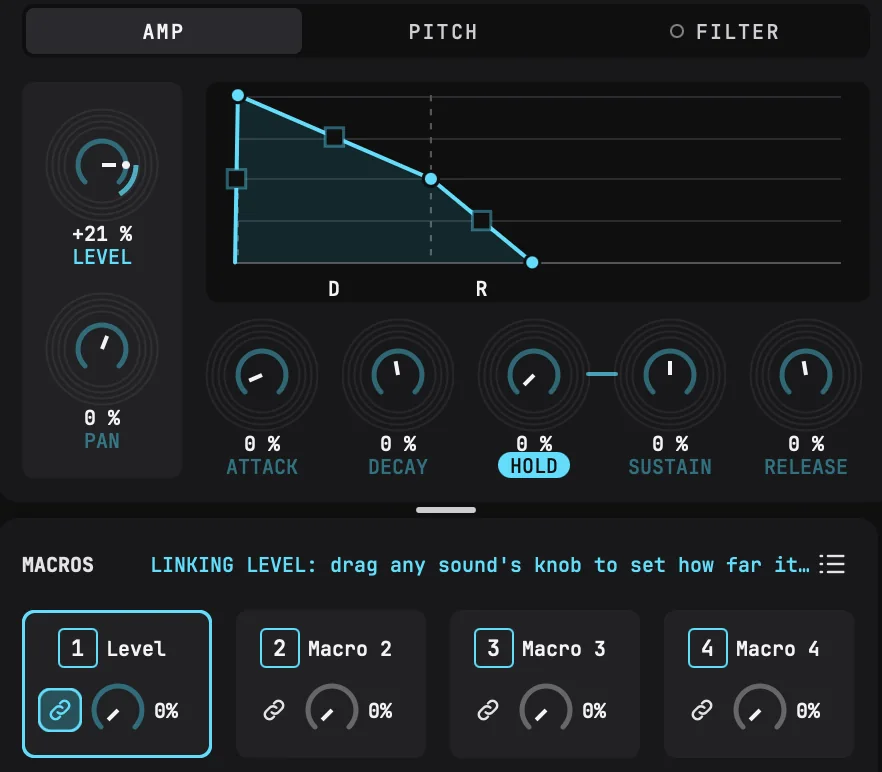
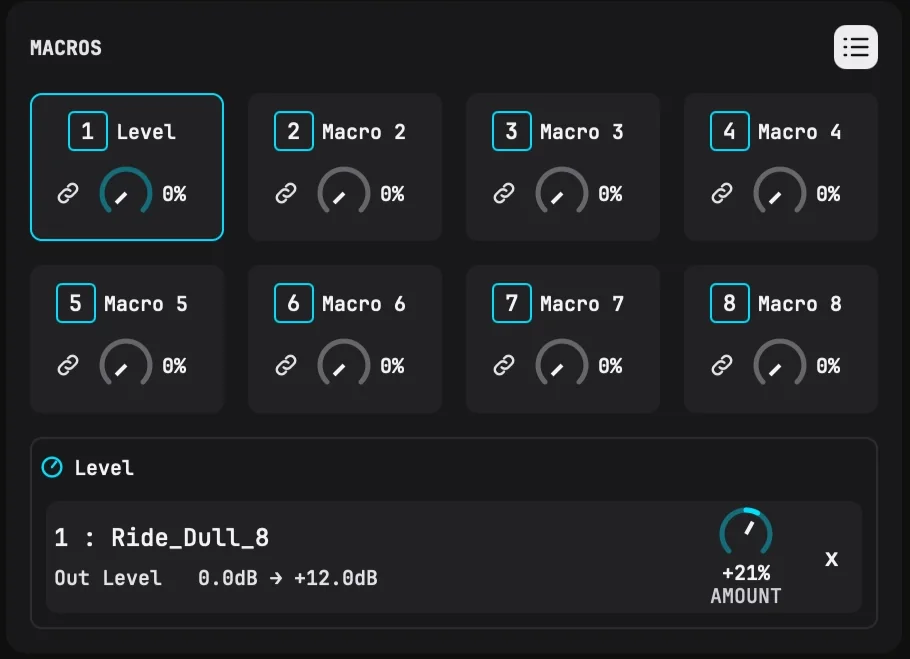
Now turn the macro: every linked setting moves together. A knob turned by macros shows one colored arc per macro. A setting can be turned by up to 4 macros.
- Click a macro's name to rename it.
- Click the list icon to see every macro and what it moves. There, change each amount, or click × to unlink a setting.
- Right-click a linked knob to copy its macros to the other gestures, the pad or the instrument, or to remove them.
Play the macros with your finger
On a pad, the X and Y slots show the macros 1 to 8, dashed until a macro is on them. Click a macro's number to let that axis turn it; click it again to stop. An axis exists as long as it turns a macro. You can also drag a macro's number from MACROS onto a slot. A hatched number is already turned by the pad's other axis.
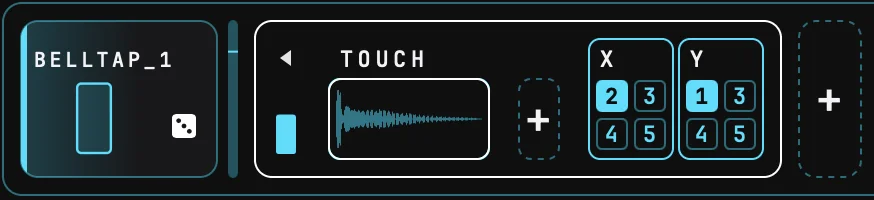
For example, link macro 1 to the filter's cutoff, then let the Y axis of a pad turn it: the higher you touch the pad, the brighter it sounds.
09CHOKES
A choke stops one sound when another starts, like an open hi-hat closed by the next hit.
Automatic chokes
Inside a pad, DRUW chokes for you: a new touch stops the pad's previous touch, the shakes of a pad stop each other, and so do its edges.
Set your own chokes
Set the GESTURE | CHOKES switch in the INSTRUMENTS header to CHOKES. The rows now show the chokes instead of the gestures:
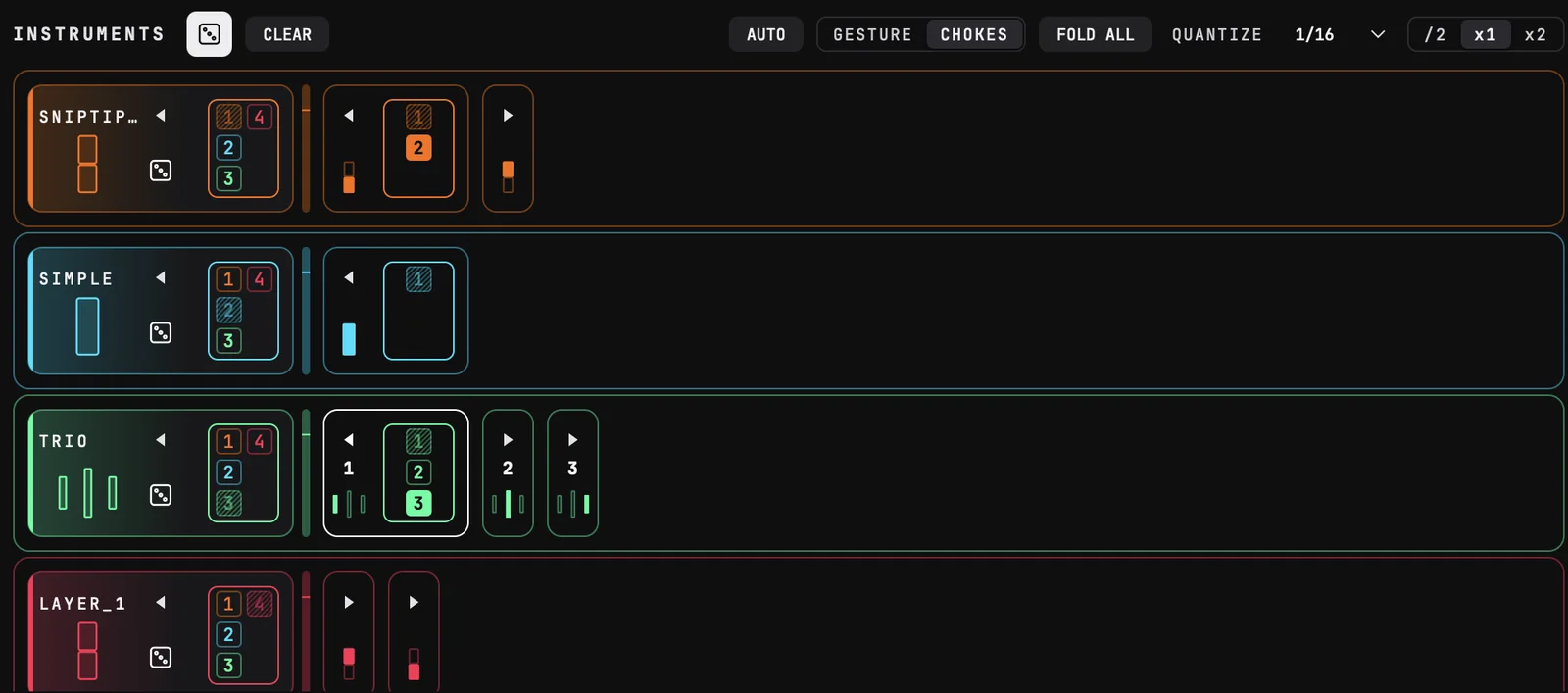
- Between instruments: each instrument shows one numbered tile per instrument of the playground; select an instrument’s header to see each row's number, also shown on its pads on the playground. Click a number to turn its choke on or off: a lit number is an instrument this one chokes. A tile blinks each time its instrument plays. Click the arrow above an instrument's dice to show or fold its chokes. Right-click for quick choices: Cuts all the [instruments of its type], All [instruments of its type] cut it, [instruments of its type] one at a time, Cuts all the others, Cut by all the others, Clear chokes.
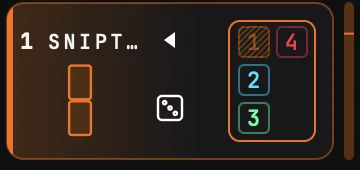
-
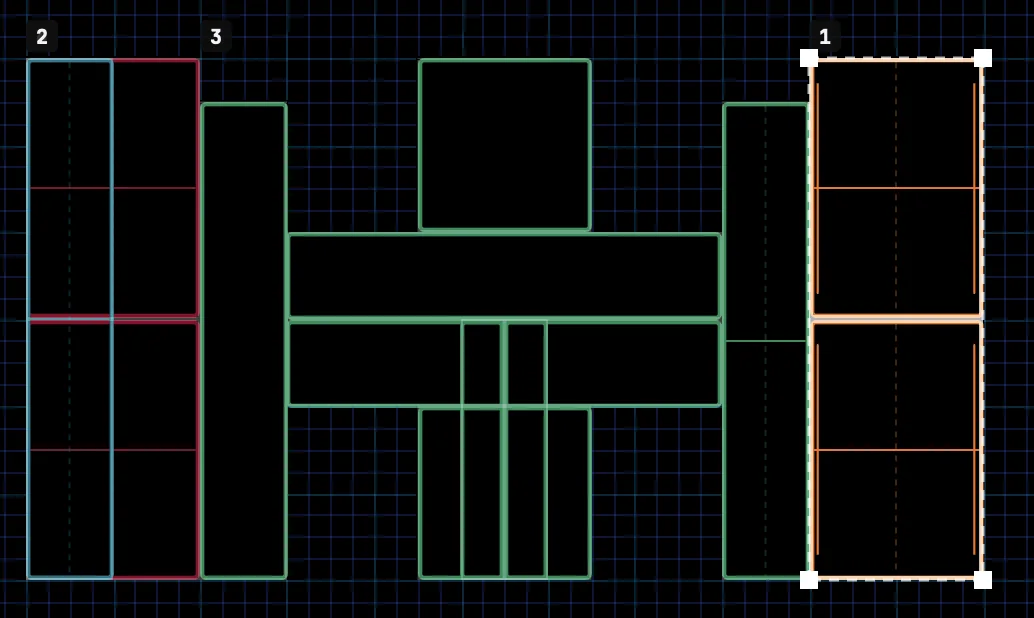
Between pads: each pad shows one numbered tile per pad of its instrument; select a pad to see the pads' numbers on the row and on the playground. Click a number to turn its choke on or off: a lit number is a pad this one chokes. Right-click for quick choices: Chokes the others, Choked by the others, One at a time, Clear chokes.
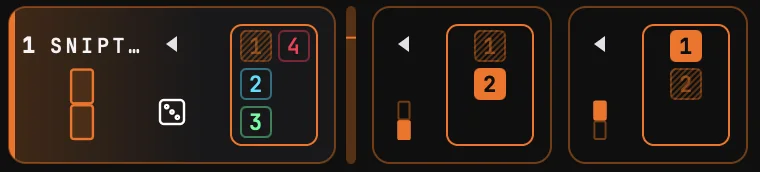
Pads numbers
A choke goes one way: for two sounds to stop each other, set it both ways.
The switch only changes what you see: your chokes keep working when you go back to GESTURE.
10SEVERAL DEVICES, SEVERAL DRUWS, SEVERAL PEOPLE
One playground can be played from several devices at once, and shared by several DRUWs in your DAW project: for example drums on one track and a bass on another, all played from the same surface.
Several devices
Several phones and tablets can join DRUW: each one connects the same way, and appears in DEVICES with its own frame.
- Give each device its own part of the playground, for example to split a large playground across two tablets placed side by side, or to give each player their own instruments.
- Frames can overlap: two devices can share the same instruments, for example to play them four-handed.
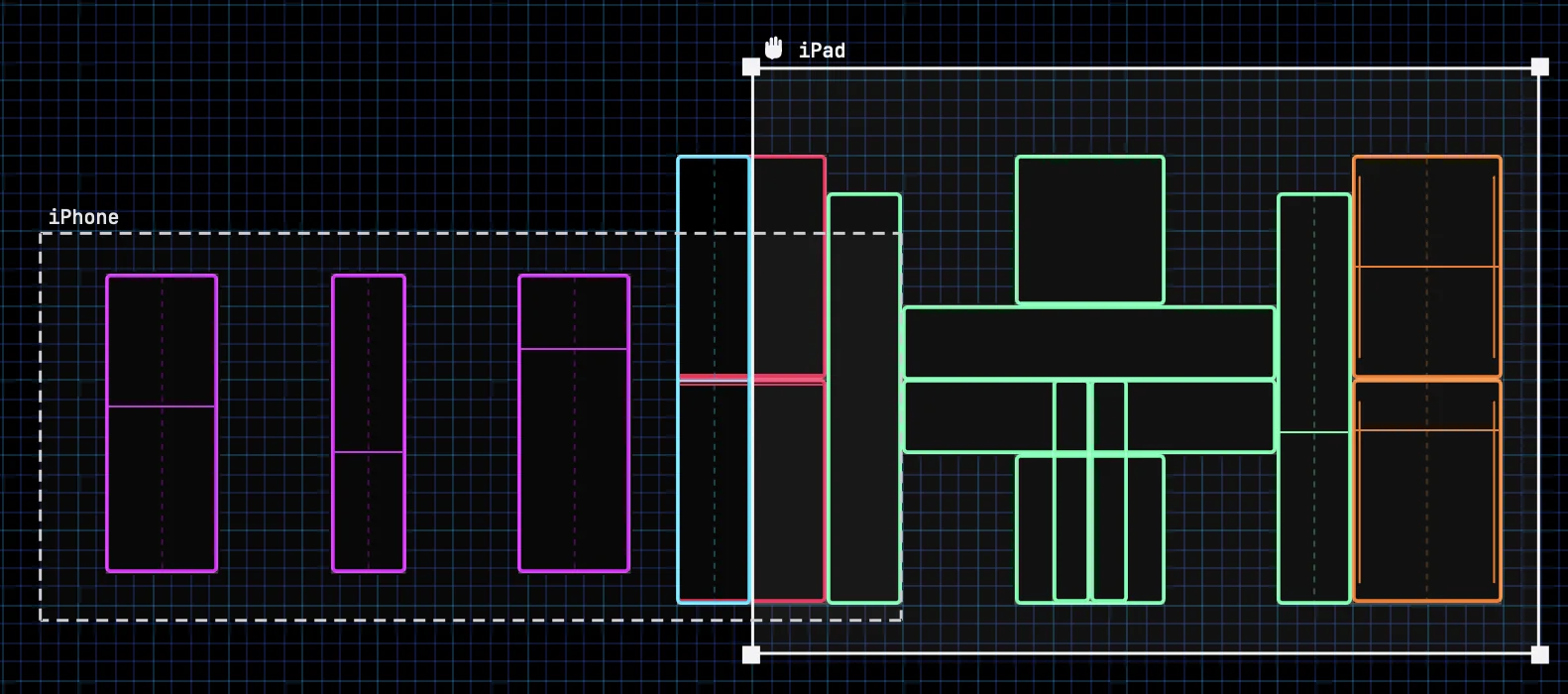
Several DRUWs
Load DRUW on as many tracks of your DAW as you like. Every DRUW in the same room shares the same playground: the instruments of every DRUW appear on it, and on your devices, side by side.
- Each DRUW plays on its own track: its sound goes to that track, so you can mix and process each part separately.
-
Each DRUW has its own MIDI channel. As soon as a second DRUW joins, tabs labelled CH 1, CH 2… appear on the top-left of the playground. Hover a tab to see its DAW track. A tab blinks when its DRUW plays.
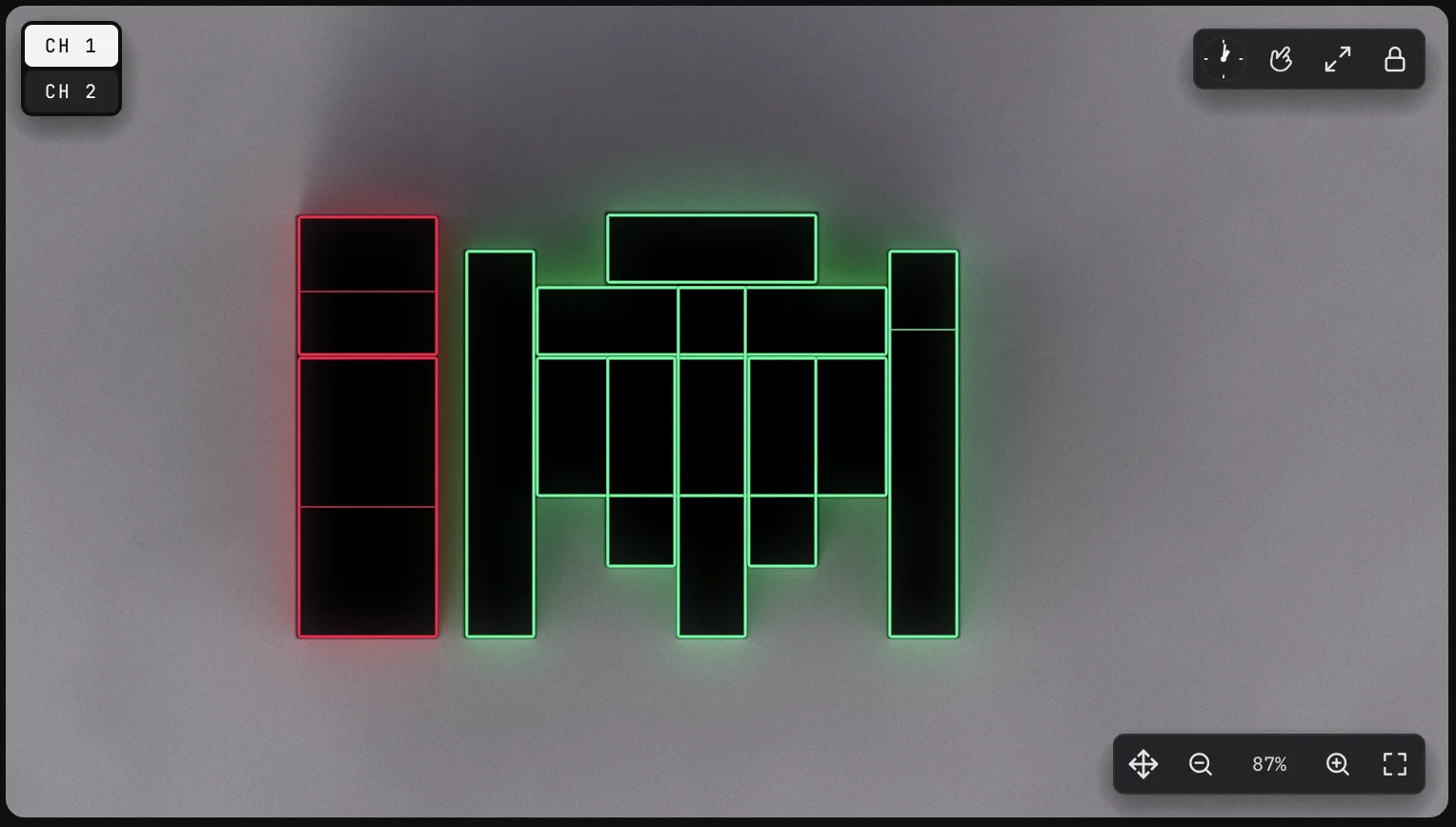
Play multiple DRUW at the same place -
In a DRUW window, you edit only that DRUW's instruments. The others are shown hatched. Click another DRUW's tab, or click EDIT IN CH N WINDOW, to open its window.
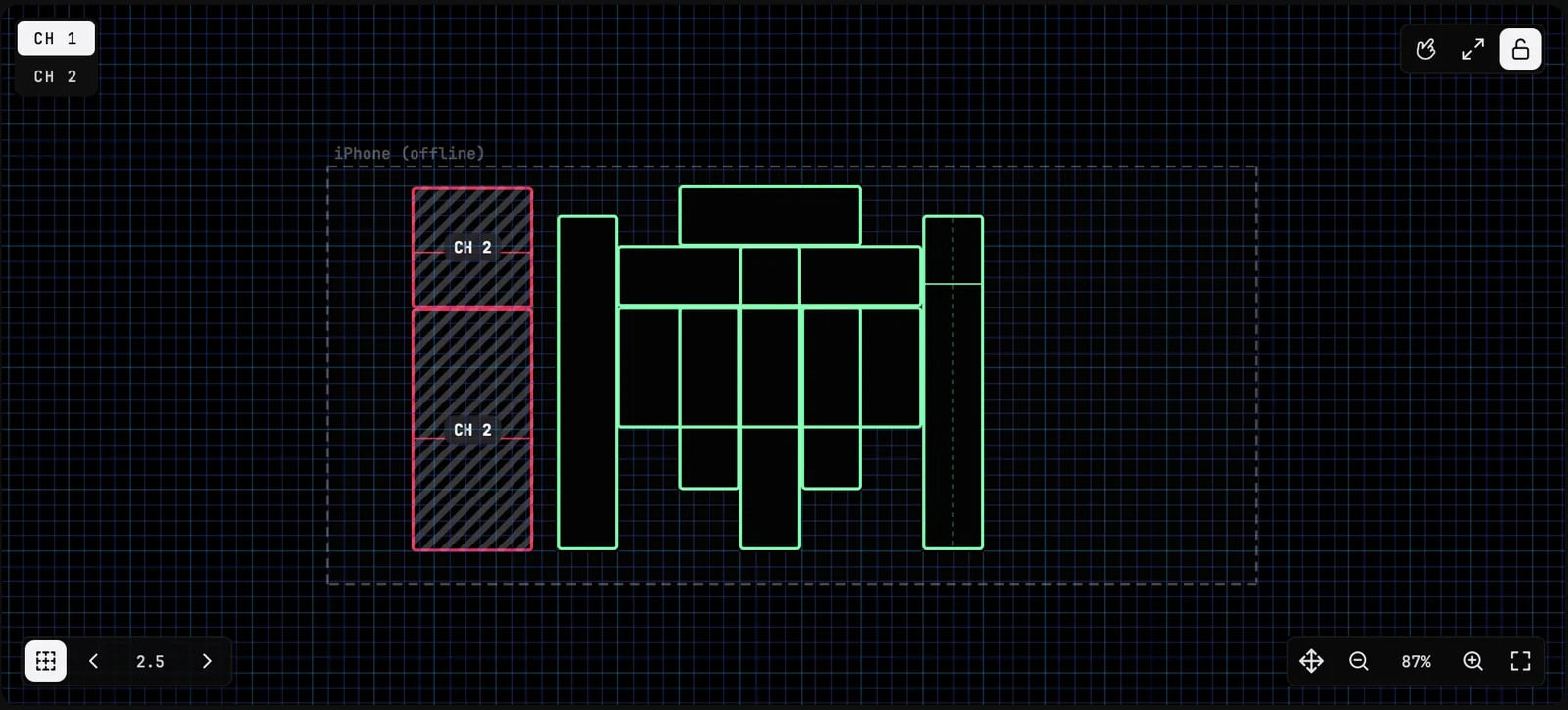
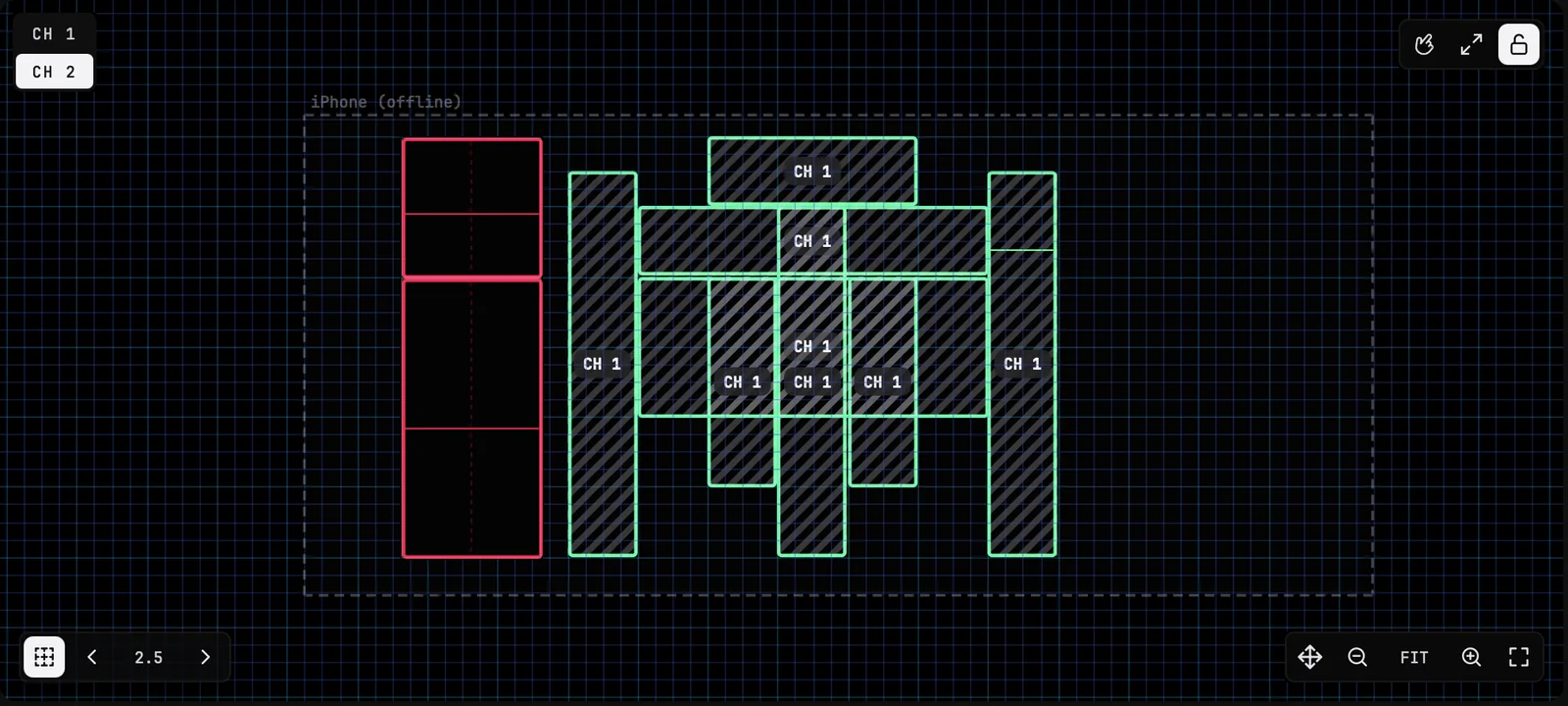
- Recording: with DAW REC, set each track's MIDI input to BEATSURFING on the channel of its own DRUW.
Several people: rooms
Everything on the same network joins one session: every DRUW, every Performer app and every BEATSURFING bridge. When you work alone, that is what you want. But when several people use DRUW on the same Wi-Fi network (two producers in one studio, a class, a workshop), they all end up on one playground. Each person's instruments appear on the other people's screens and devices, and their phones play each other's pads.
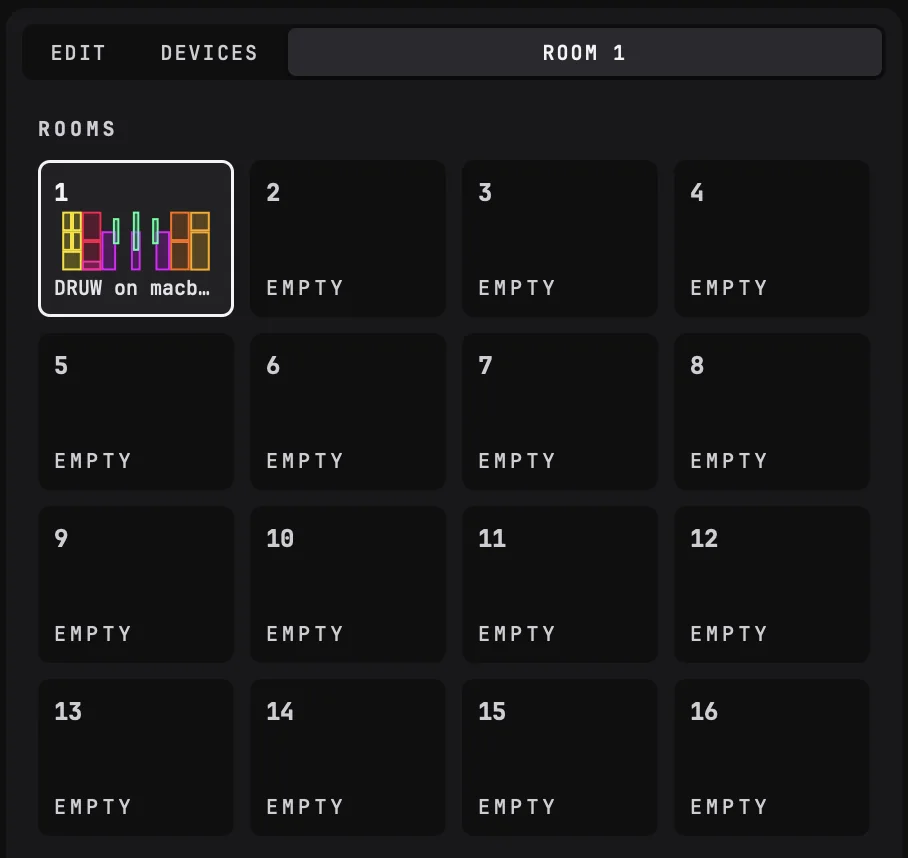
Rooms keep them apart. A room is a separate session, with its own playground, its own devices and its own DRUWs. There are 16 rooms, a bit like MIDI channels. DRUWs and devices only see each other when they are in the same room.
For example: two producers share a studio. The first one stays in Room 1 with their DRUWs and their tablet. The second one moves their DRUW and their phone to Room 2. Each one now has their own playground, and neither hears the other.
Turn rooms on
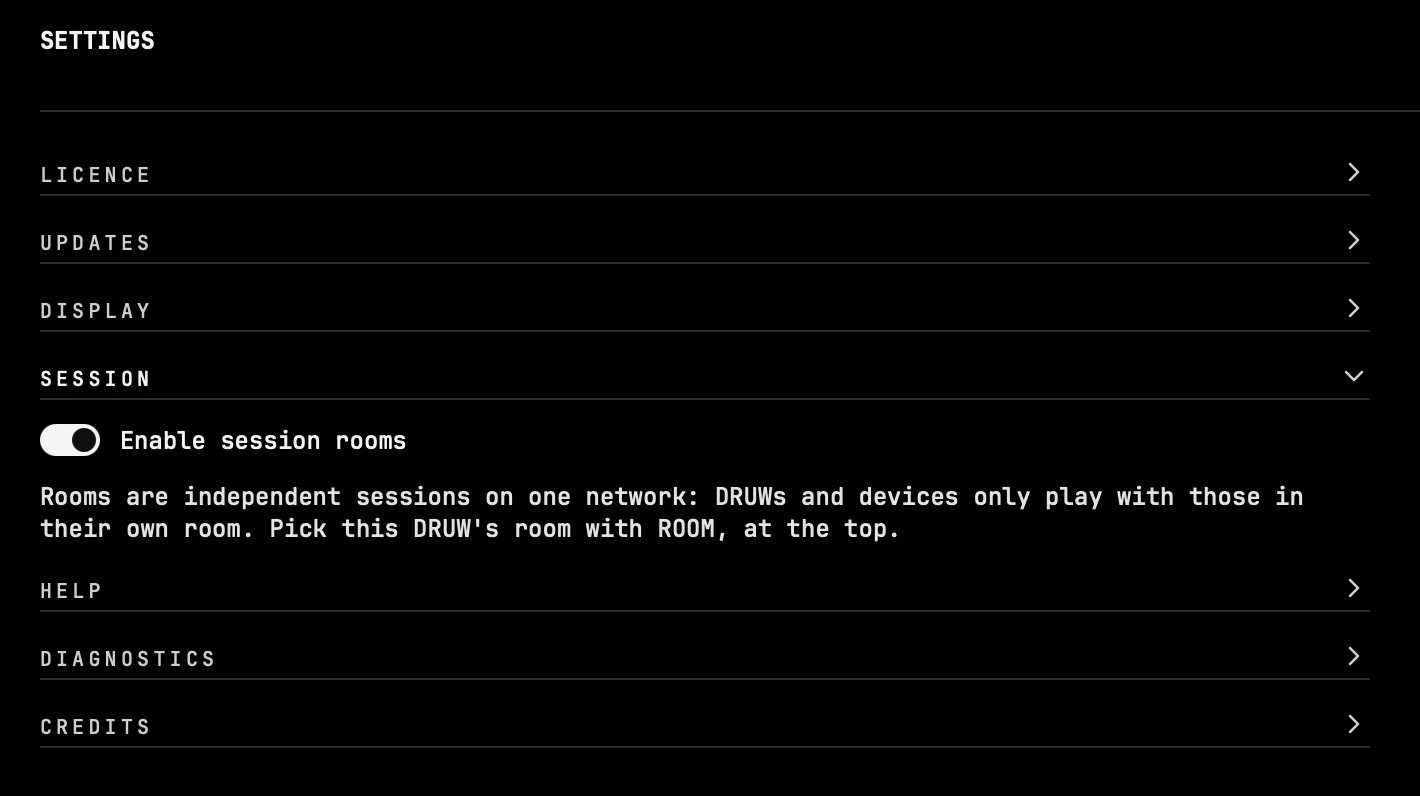
Rooms are off by default. To use them, turn on Enable session rooms in SETTINGS › SESSION. The setting applies to every DRUW on this computer. Turn it off, and everyone plays in Room 1 again.
Change rooms
- In DRUW: click the ROOMS tab at the top of the right column. All 16 rooms appear, showing who is in each one and a preview of its pads. Empty rooms read « EMPTY ». Click a room to move this DRUW into it. The DRUW takes its instruments with it: they join that room's playground.
- In the Performer app
- move DRUW to its room first. The app's settings page then shows a ROOM section: tap the same room. The device then shows that room's playground. (While everyone is in Room 1, the app shows no rooms.)
- In the BEATSURFING bridge
- choose the room from its menu or its window.
Good to know
- Move everything that plays together. A DRUW, its devices and, if you record with DAW REC, the BEATSURFING bridge must all be in the same room.
- Each computer has one BEATSURFING bridge, and it is in one room at a time. On that computer, DAW REC only works for the DRUWs in the bridge's room.
- A room holds up to 16 DRUWs, one per MIDI channel.
- Each DRUW saves its room with your DAW project. A new DRUW starts in the last room you picked on this computer.
11SAVE YOUR WORK
DRUW saves your work at three levels: your DAW project keeps everything as it is, presets keep all the instruments of one DRUW, and instruments keep one instrument layout, with its kits, in your library.
Your DAW project
You don't need to do anything: when you save your DAW project, DRUW saves its whole state with it, including your own samples. When you reopen the project, even on another computer, you find your playground, your instruments and all their settings as you left them.
Mute is saved with the project; solo only lasts for the current session.
Presets
A preset holds all the instruments of one DRUW, with their pads, kits and settings. The header shows the current preset; an asterisk (*) shows that you changed it.
- < and >: load the previous or next preset.
- Save (the icon before the name): give your preset a name and click SAVE. If the name is taken, the button reads OVERWRITE.
-
Browse: click the preset's name to open PRESETS:
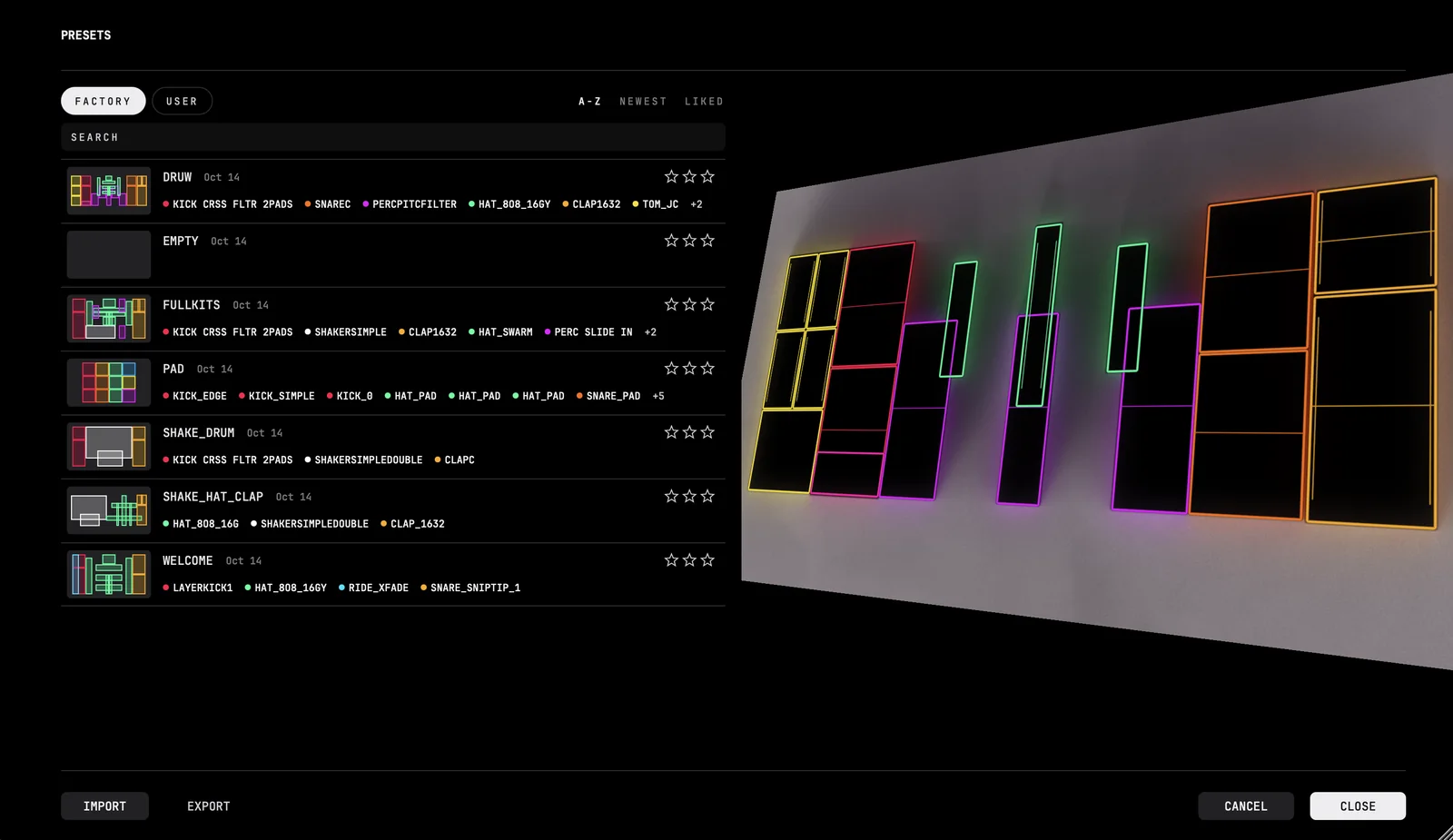
Presets library - FACTORY shows DRUW's presets, USER, yours.
- Search by name, and sort by name (A-Z), date (NEWEST) or rating (LIKED). You can rate a preset with up to three stars.
- Click a preset to load it; double-click to load it and go back to DRUW. Use ↑ and ↓ to step through the list.
- The window on the right lets you preview the preset you clicked and play its instruments as you would on the main playground.
- CLOSE keeps what you loaded; CANCEL (or Esc) brings you back to the main playground as you left it.
- To delete one of your presets, hover it, click its cross, then DELETE.
- If you changed the loaded preset without saving, it is shown greyed out, its name preceded by an asterisk (*), and marked UNSAVED CHANGES. Save it with the SAVE button.
If you loaded a preset by mistake, click Undo in the header.
A preset points to your own samples where they are on your computer: if you move or delete one, the preset loses it.
To keep a preset with its samples, EXPORT it.
Presets and tempo
A preset remembers the tempo it was made at: PRESETS shows it as ORIGINAL TEMPO, so you know what to set in your DAW.
While PRESETS is open, the presets play at their own tempo (120 BPM for a preset saved without one).
Share a preset
In PRESETS, click EXPORT to save the loaded preset with its samples as a single .druwpreset file. On the other computer, click IMPORT and pick that file: the preset joins your USER presets, ready to play.
Instruments
Save a single instrument to your library to use it again in any project: open it, check its name, and click its save icon. If the name is already in your library, DRUW asks before replacing it.
- The instrument is saved with its pads, gestures, macros and all its kits.
- Its samples are copied into your library, so the instrument keeps working even if you move the original files.
- Your saved instruments show up in the browser's INSTRUMENTS tab under USER, and when you roll instruments of their type.
- Factory instruments are never changed. When you save an instrument, or one of its kits, that came from the factory library, DRUW saves it in the user library under a new name ending in « mod » (for example « Kick_Simple mod », or « Kick_Simple mod 2 » if that one is taken).
12SETTINGS
Click the gear symbol at the top left of DRUW to open the SETTINGS. It holds several sections: click one to expand it.
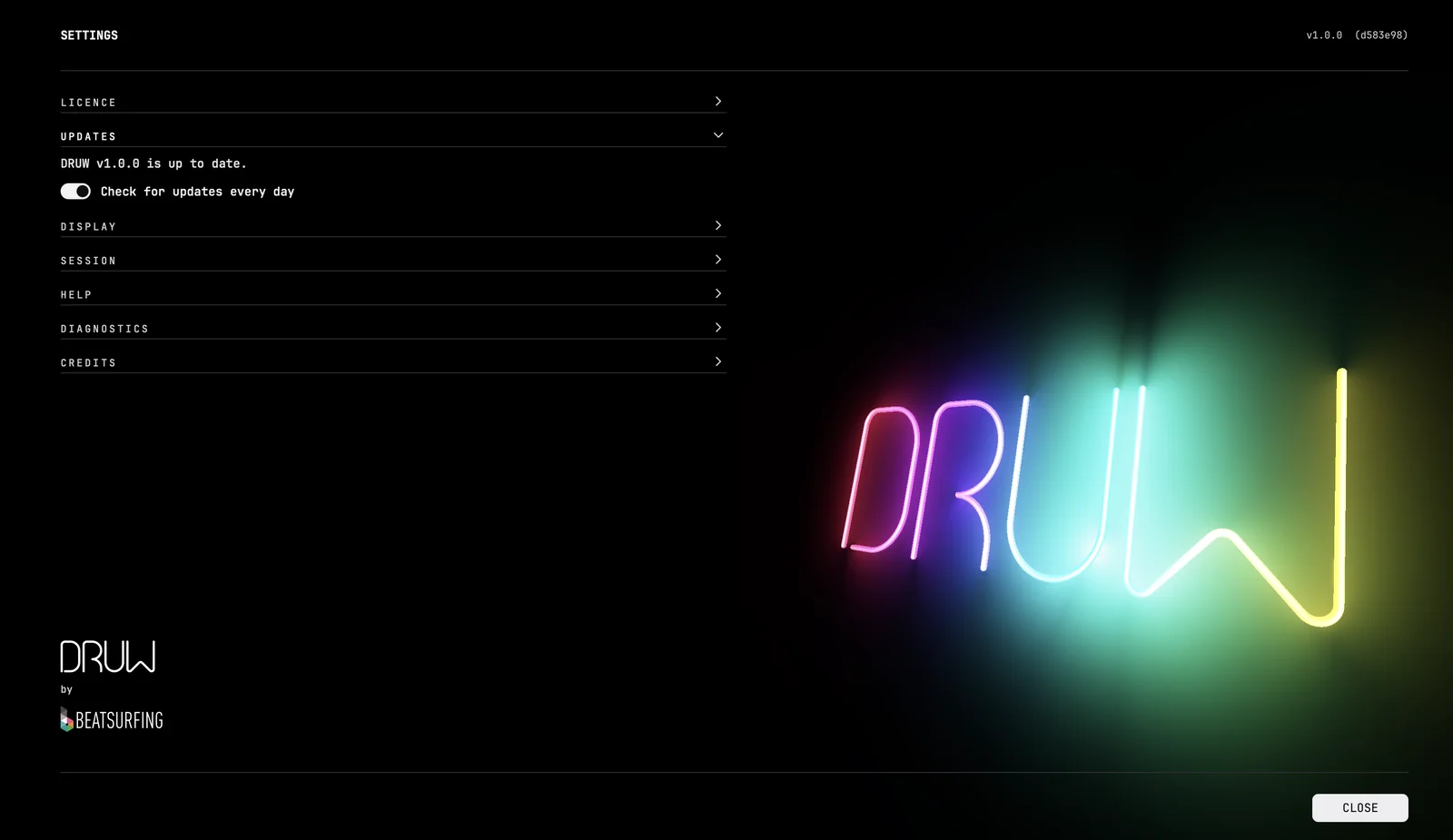
- LICENCE: your licence details, and DEACTIVATE to unlink this computer from your licence.
- UPDATES: whether DRUW is up to date. When a new version is out, DOWNLOAD it and read what's new. Turn Check for updates every day OFF if you don’t want to see the update notification.
- DISPLAY: Draw the play surface with OpenGL. Turn it off if your graphics card misbehaves: the playground is then drawn without the GPU, a little slower. UI scale sets the size of the whole interface (50 to 125 %), and Gamma the brightness of its colours; a row of controls below shows the result.
- HELP: USER GUIDE opens this guide; QUICK TOUR replays the tour of the first launch, without touching your playground; HELP TOPICS opens HELP and its chapters; BEATSURFING.COM opens our website.
- DIAGNOSTICS: Keep a diagnostics log keeps a log on this computer. When something goes wrong, click SAVE DIAGNOSTIC REPORT and email the file to us, with a few words on what happened. Nothing is ever sent without you.
- SESSION: Enable session rooms turns rooms on or off for every DRUW on this computer. When Off, everyone plays in Room 1.
- CREDITS.
The version of DRUW is shown at the top of SETTINGS.
13SYSTEM REQUIREMENTS
macOS
- macOS 10.13 High Sierra or later
- Intel or Apple Silicon processor
- A 64-bit host that supports AU, VST2, VST3 or AAX
- Formats: AU, VST, VST3, AAX
Windows
- Windows 10 or later
- A 64-bit host that supports VST2, VST3 or AAX
- Formats: VST, VST3, AAX
Phone or tablet
- iPhone or iPad with iOS 13.0 or later, or Android device with Android 7.0 or later
- The free BEATSURFING Performer app
- A Wi-Fi network shared with your computer, or a USB cable
14INSTALLATION INSTRUCTIONS
The DRUW installer installs the DRUW plugin, its factory library (instruments, presets and samples), and the BEATSURFING bridge, a small background application that carries your pads to your DAW in DAW REC. The BEATSURFING bridge is installed with every copy of DRUW and starts when you log in.
macOS
- Download the DRUW installer (.pkg).
- Open it and follow the steps. The plugins are installed in
/Library/Audio/Plug-Ins, and the BEATSURFING bridge in/Applications. The bridge starts when you log in; you can turn this off in System Settings › General › Login Items. - Open DRUW in your DAW and enter your licence code*.
Windows
- Download the DRUW installer (.exe).
- Run it and follow the steps. The plugins are installed in your VST/VST3 folder (“C:\Program Files\Common Files\” by default, in a “Beatsurfing” subfolder, but you can define your own path in the installer) and in the Avid AAX folder. The BEATSURFING bridge is installed in
C:\Program Files\Beatsurfing\BEATSURFINGand starts with Windows. The installer also installs the virtual MIDI driver that creates the BEATSURFING MIDI port. - Open DRUW in your DAW and enter your licence code*.
*After purchasing DRUW, your licence code appears on your licences page: vst.beatsurfing.com/my-license
Where DRUW keeps its files
- Factory library:
/Library/Application Support/Beatsurfing/DRUW/(macOS),C:\ProgramData\Beatsurfing\DRUW(Windows): Factory Instruments, Factory Presets, Factory Samples. - Your library:
~/Library/Application Support/Beatsurfing/DRUW/(macOS),%APPDATA%\Beatsurfing\DRUW(Windows):- User Instruments
- the instruments you save.
- User Presets
- the presets you save or import.
- Imported Samples
- copies of the samples used by your saved instruments and imported presets.
- Session Samples
- the samples your DAW projects carry, written back when you open a project. It is safe to empty.
- Diagnostics
- the diagnostics log.
15ACTIVATING & DEACTIVATING THE LICENCE
On first launch, you’ll see the SETTINGS screen and you will be prompted to enter your LICENCE:
- Type or paste your licence code in the field, then press Return.
- Can't find it? Click FIND MY LICENCE to open your licences page.
You can activate your LICENCE on 3 different computers. To move your DRUW activation to another computer, open SETTINGS › LICENCE on the current one and click DEACTIVATE first. DRUW stops playing on this computer until a licence is entered again.
16SUPPORT & TROUBLESHOOTING
My device doesn't find DRUW
- Check that your device and your computer are on the same Wi-Fi network. Guest networks and some public or office networks keep devices from seeing each other: try your home network, your phone's hotspot, or a USB cable.
- Check that DRUW is open on a track in your DAW.
- If session rooms are on, check that your device and DRUW are in the same room.
- Close and reopen the Performer app.
I don't hear anything
- Check that the instrument isn't muted, and that no other instrument is soloed.
- Check the DRUW track's volume and output in your DAW, and the instrument's OUT.
- On your device, check that the pads are inside its frame.
- In DAW REC, check that the track is armed or monitoring its input, with BEATSURFING as its MIDI input, on the right channel (if you’re not sure, switch back to DIRECT mode and check if you hear anything).
My DAW doesn't record anything
- Check that the switch is on DAW REC, and that the track is armed.
- Check that the BEATSURFING bridge is running and, if session rooms are on, in the same room as DRUW. If DAW REC is faded, click it, then START BEATSURFING bridge.
A sample is missing
If you move or delete a sample used by your playground, its sound plays nothing and the sample editor shows « sample not found ». With AUTO on, clicking its gesture also names the file in the footer. Put the file back where it was, or drop another sample on the gesture.
Your DAW projects carry their own samples, and saved instruments keep a copy of theirs. Presets don't: they point to your samples where they are. Save the instruments you care about to your library, and use EXPORT to keep a preset with its samples.
I hear a delay in Logic Pro or Reaper
- Logic Pro uses the buffer size you set in its audio preferences only for a track that is armed for recording. On any other track it uses a larger buffer, which adds delay to what you play. Arm the DRUW track, even if you don't want to record MIDI, to get the buffer size you set.
- Reaper adds about 200 ms of delay to a track that is not armed. Arm the DRUW track, or turn off Anticipative FX processing in Reaper's preferences.
Something else went wrong
Open SETTINGS › DIAGNOSTICS, click SAVE DIAGNOSTIC REPORT, and email the report to us with a few words on what you were doing.
Support
For additional support or updates, visit our website at beatsurfing.com and explore our knowledge base at https://knowledge.beatsurfing.com/audio-plugins-mac-os-x-or-windows
Thanks for supporting us, and please don't hesitate to reach out with any questions or ideas.
— the BEATSURFING team
 Login with Google